Business Cards
Premium Stocks With Gloss & Matte Finishes.
Starts From$19
Premium Stocks With Gloss & Matte Finishes.
Starts From$19Sharp, Vivid Flyers In Any Size And Quantity.
Starts From$29Vibrant Stickers In Any Size, Matte Or Gloss.
Starts From$20Vibrant Postcards For Mailers And Promotions.
Starts From$22Premium Stock Or Laminated Menus And Multiple Page Booklets.
Starts From$24Gallery-Quality Posters In Large Formats.
Starts From$18Soft, Durable Tees For Teams And Brands.
Starts From$22Personalized Mugs For Gifts And Merch.
Starts From$40Retractable Banners For Events And Shops.
Starts From$45Weatherproof Signs With H-Stakes.
Starts From$18Printing, Packaging And Signage, From Business Cards To Full Vehicle Wraps, Designed And Produced With Care.
We Are A Full-Service Print Studio. Bring Us An Idea, A Logo Or Just A Rough Sketch, And We Turn It Into Something You Can Hold, Wear Or Put On Your Vehicle.
Quality Stocks, Vinyl, Fabrics And Inks Chosen To Last.
Our Designers Help You Get Your Artwork Print-Ready.
Rush Options For Events, Launches And Deadlines.
Choose A Product And Share Size, Quantity And Deadline.
We Send A Free Digital Proof Before Anything Is Printed.
Collect From Our Studio Or Have It Delivered To You.
Licensed Software
Design Business Cards, Flyers, Banners, Signs, Stickers And More With Print-Ready Sizes, Bleed And Safe Areas Already Set Up. Start Free, Upgrade To Pro When You Need It.
Use Of Packlyn Design Is Licensed To You By Packlyn Canada Under Its End User Licence Agreement.

A Seamless Design Experience, Wherever You Work.
Designed By Packlyn Canada For Creativity And Convenience. Work Directly In Your Browser Or On Windows With One Account, Securely Save Your Projects, And Pick Up Right Where You Left Off On Any Compatible Device.
Privacy PolicyTerms Of ServiceSubscription TermsRefund & Cancellation PolicyCookie PolicyContact & Support
Choose The Installer For Your Computer. Most Windows 10 And Windows 11 Computers Are 64-Bit.
Packlyn Design Is Built On Electron, Whose Current Versions No Longer Include A 32-Bit Windows Edition, And Its On-Device AI Tools Need A 64-Bit Computer. We Don’t Offer A 32-Bit Installer Rather Than Relabel The 64-Bit One.
On A 32-Bit Computer: Use Packlyn Design Online In Your Browser. It Has The Same Account, Designs And Plans.
Use OnlineNot Sure Which You Have? On Windows, Open Settings › System › About And Look At “System Type”.
Packlyn Design Is A New App That Isn’t Signed With A Paid Microsoft Code-Signing Certificate Yet, So The First Time You Open The Installer, Windows SmartScreen May Show A Blue “Windows Protected Your PC” Screen. It Means Windows Doesn’t Recognize The Publisher Yet; It Isn’t A Virus Warning. Download Only From This Page And Follow The Installation Guide, Which Shows Each Step.
One Account Works In The Browser And On Windows. Prices In Canadian Dollars, Taxes Extra.
CA$0
CA$12.99 For 30 Days
Or CA$119.99 For 365 Days
Pro Starts The Moment You Pay. With Auto-Pay On It Renews Every 30 Or 365 Days; Turn Auto-Pay Off Or Cancel Anytime In My Account And Keep Pro Until The End Of The Period You Paid For. Plyn AI Has No Credits And Nothing Is Charged For AI Use; Fair Use Applies: A Short Per-Minute Limit Stops Bursts And Automated Abuse, And If Packlyn’s Overall Monthly Spending Limit For Its AI Providers Is Reached, The AI Features Pause Until It Resets. Refunds Are Reviewed By Packlyn On Request. See The Subscription Terms And Refund & Cancellation Policy.
Packlyn Design | Windows 10 And 11, 64-Bit
These Steps Take About Five Minutes. Each Step Shows What You’ll See On Windows 11; Your Screens May Look A Little Different Depending On Your Windows Version, Browser And Settings. Prefer Not To Install Anything? Use Packlyn Design Online.
Open packlyn.ca/packlyn-design And Press Download For Windows In The Windows 64-Bit Box. Your Browser Saves Packlyn-Design-Setup-x64.exe (209 MB). Only Download Packlyn Design From This Website.
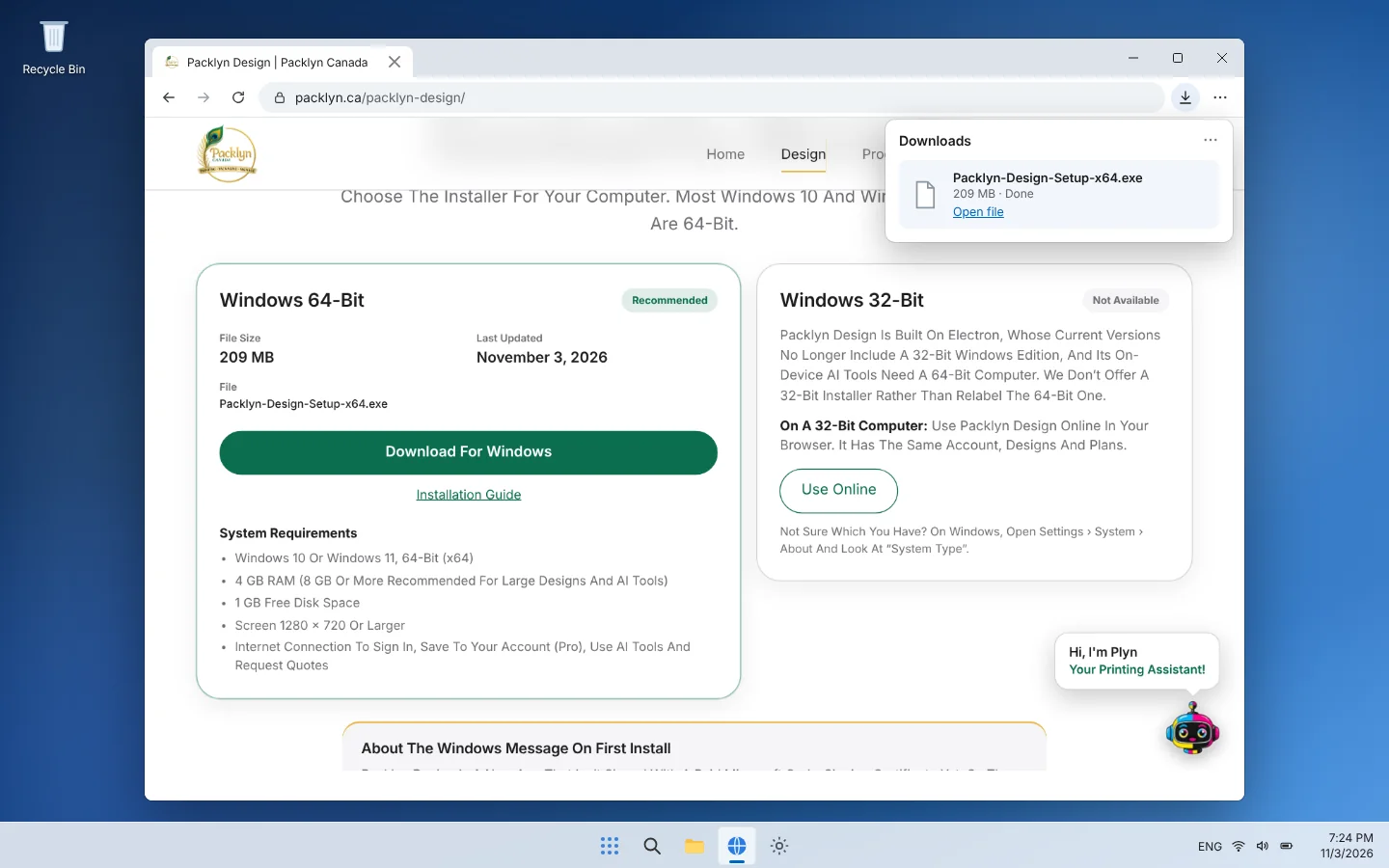
Open Your Downloads Folder (In Edge Or Chrome You Can Also Press Ctrl + J And Choose Show In Folder).
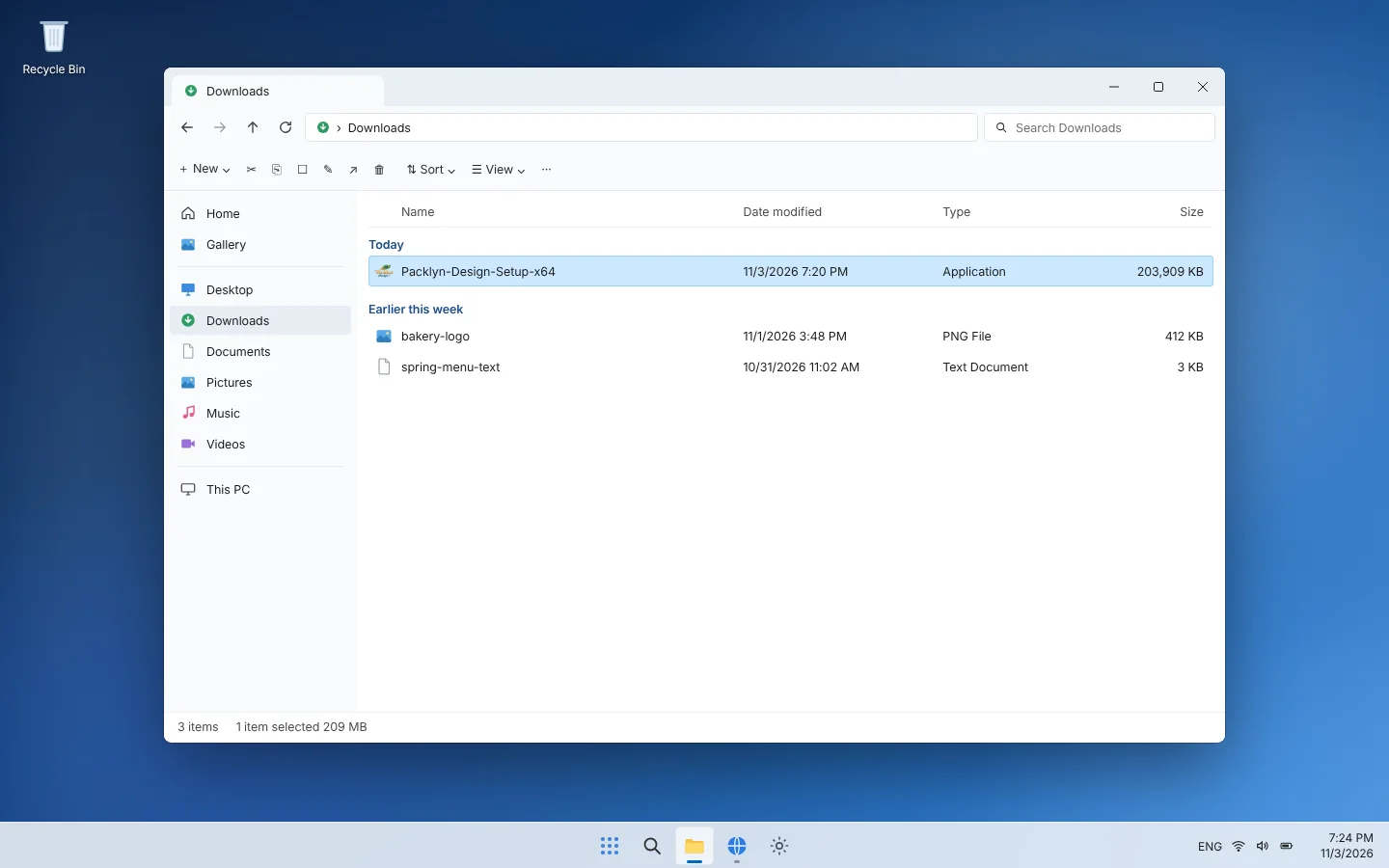
Double-Click The File. The Packlyn Design Software Setup Opens With A Welcome Page.
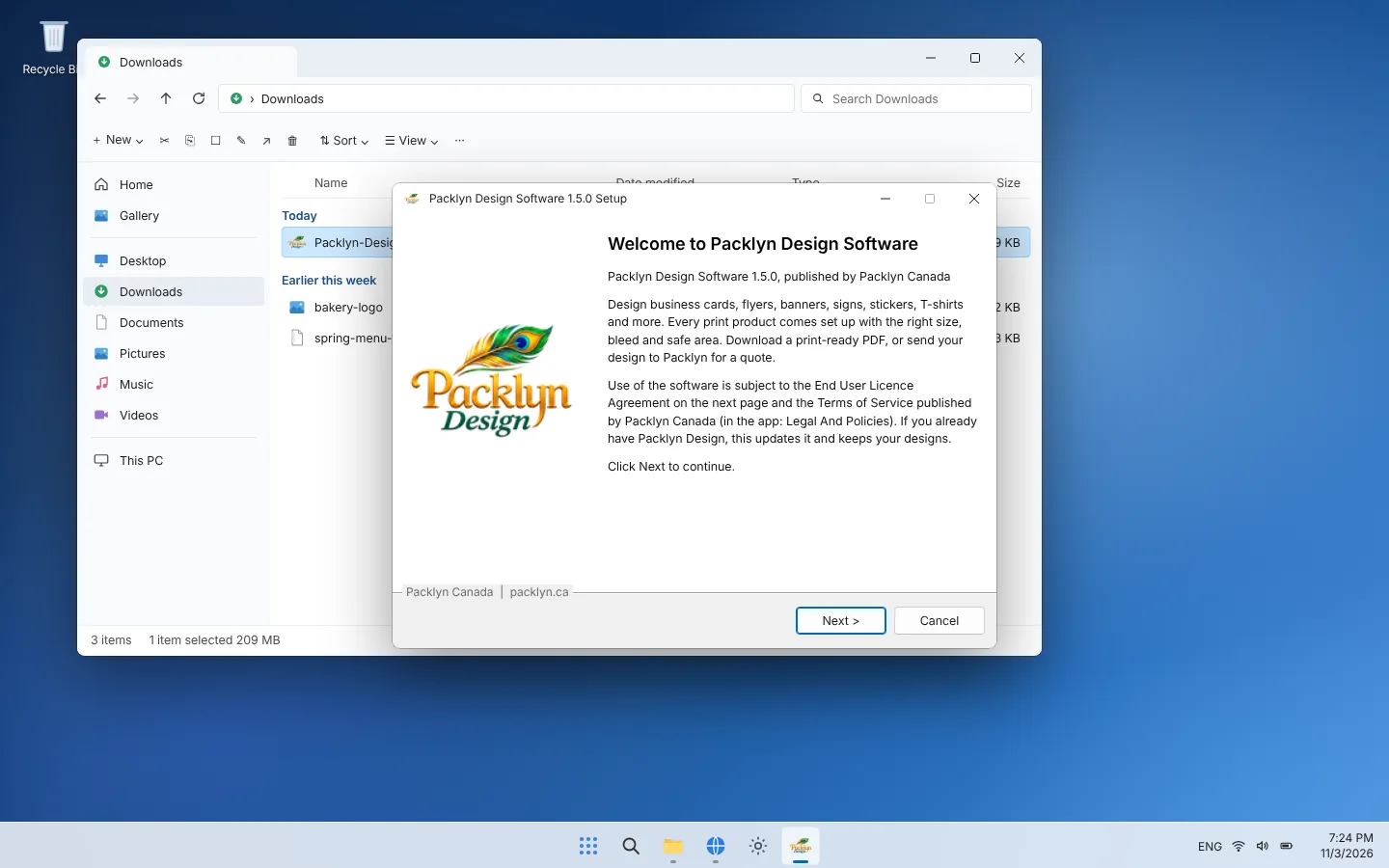
Windows Shows An Extra Message The First Time You Open A New Program That Isn’t Signed With A Paid Code-Signing Certificate Yet. It’s About The Publisher Not Being Recognized Yet, Not About A Virus. You Never Need To Turn Off Windows Security Or Your Antivirus To Install Packlyn Design.
If Your Antivirus Ever Reports A Problem With The File, Don’t Open It: Delete It, Download It Again From This Page And Contact Us.
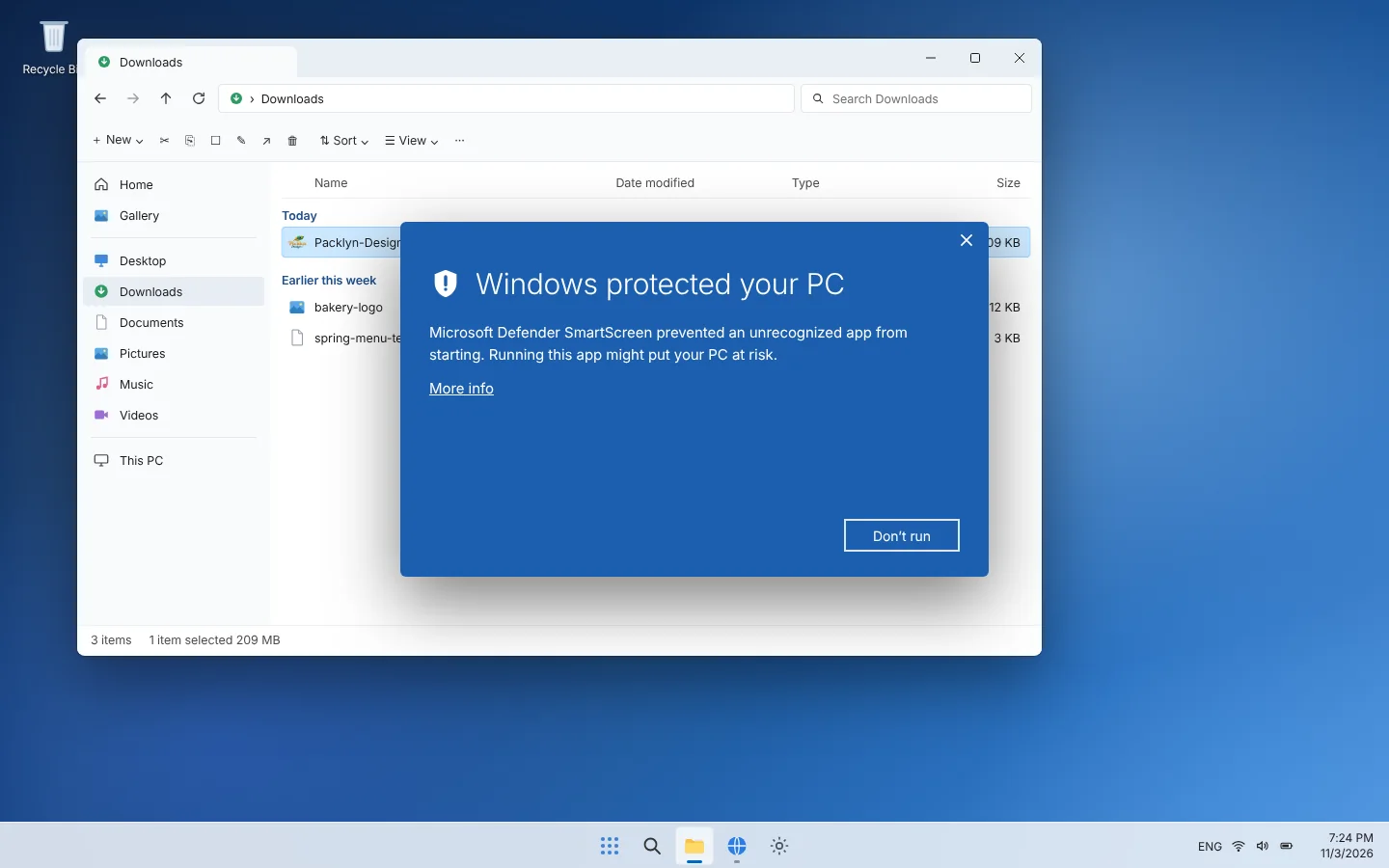
You May See A Blue Window: “Windows Protected Your PC”, With Publisher: Unknown Publisher. This Is Normal For A New App That Isn’t Signed Yet.
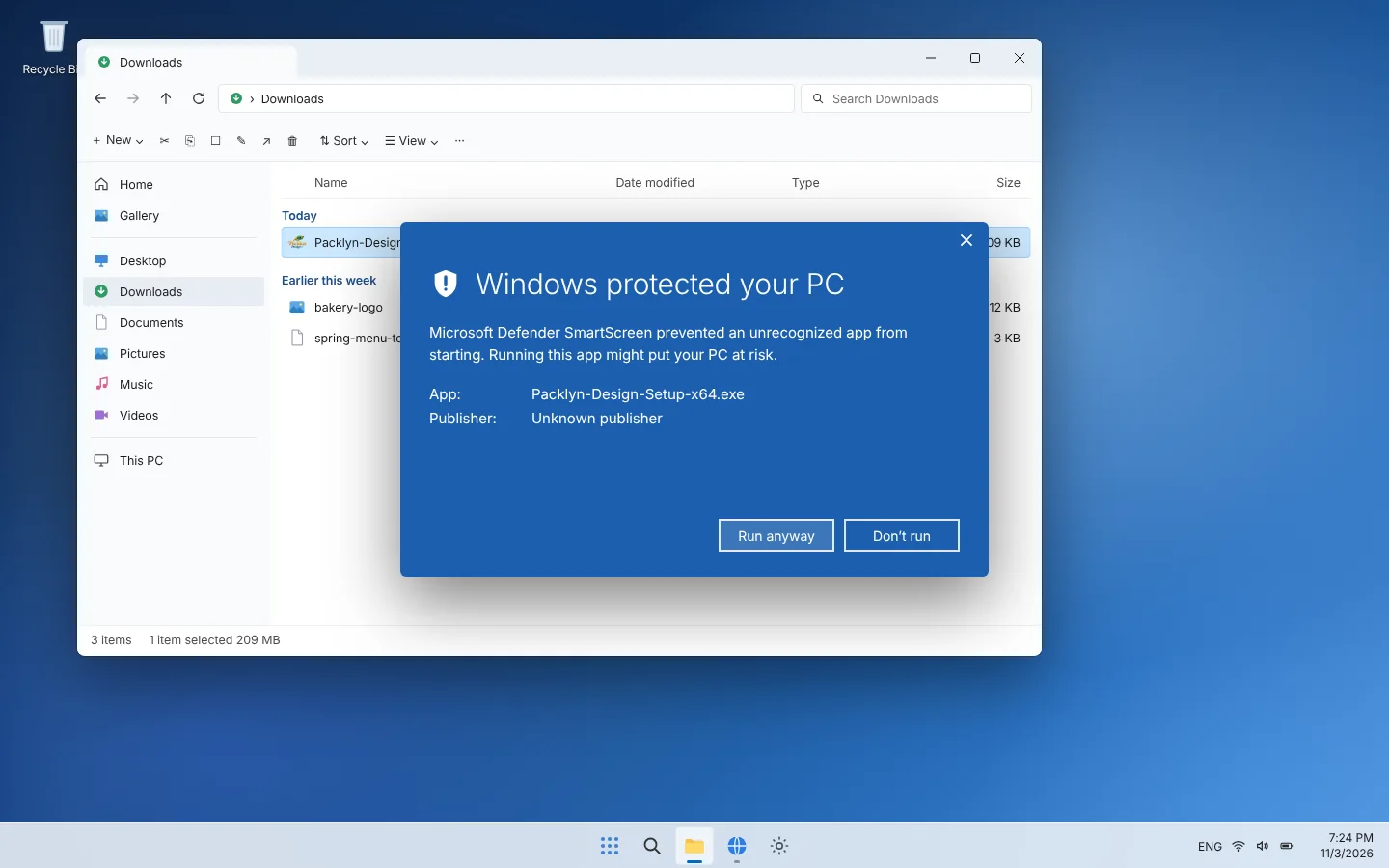
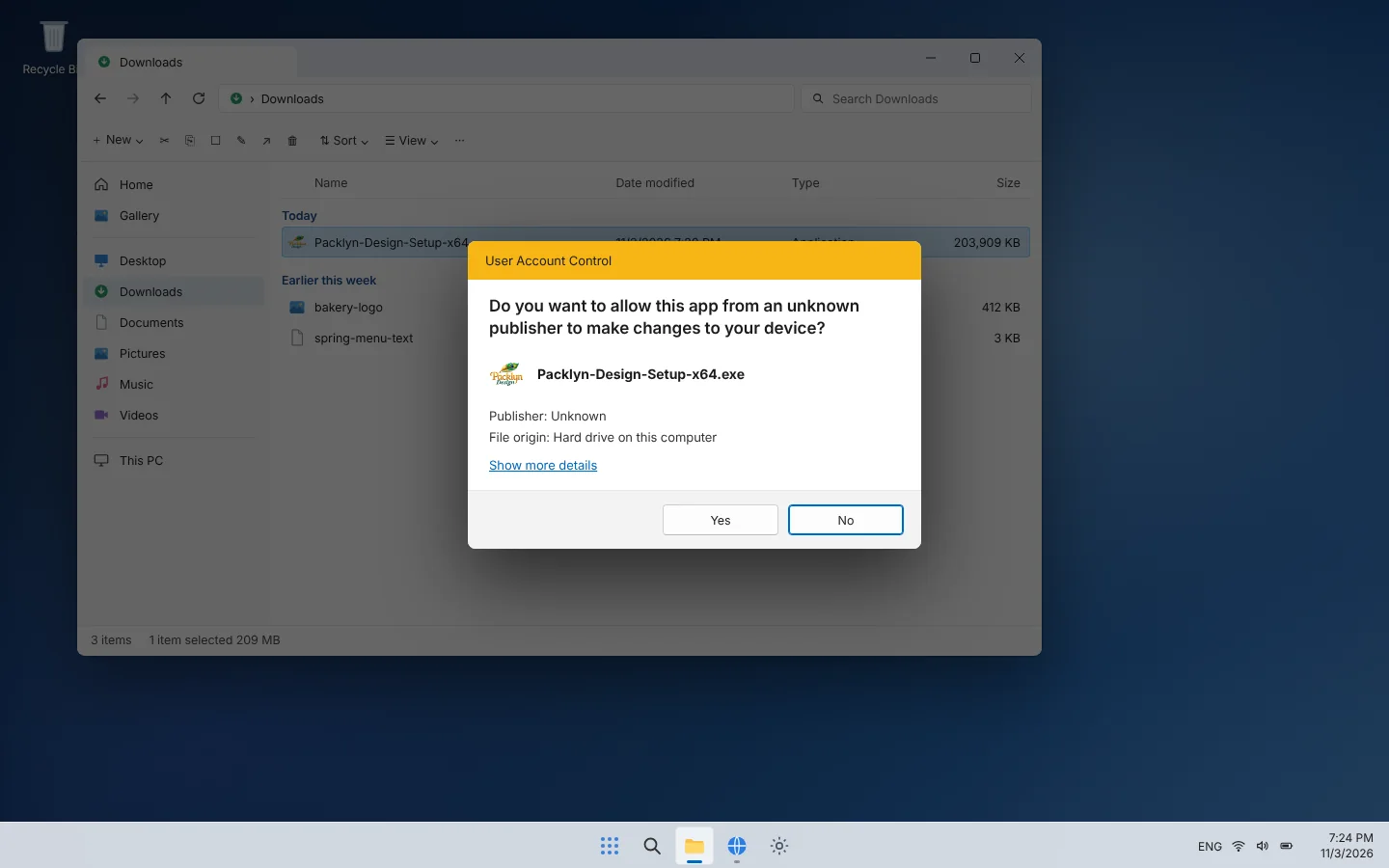
Packlyn Design Installs Only For Your Windows Account, In Your Own Programs Folder, So Windows Normally Does Not Ask For An Administrator Password. If A “Do You Want To Allow This App…” Prompt Ever Appears, Check That The Program Is The Packlyn Design Setup You Downloaded Before Choosing Yes.
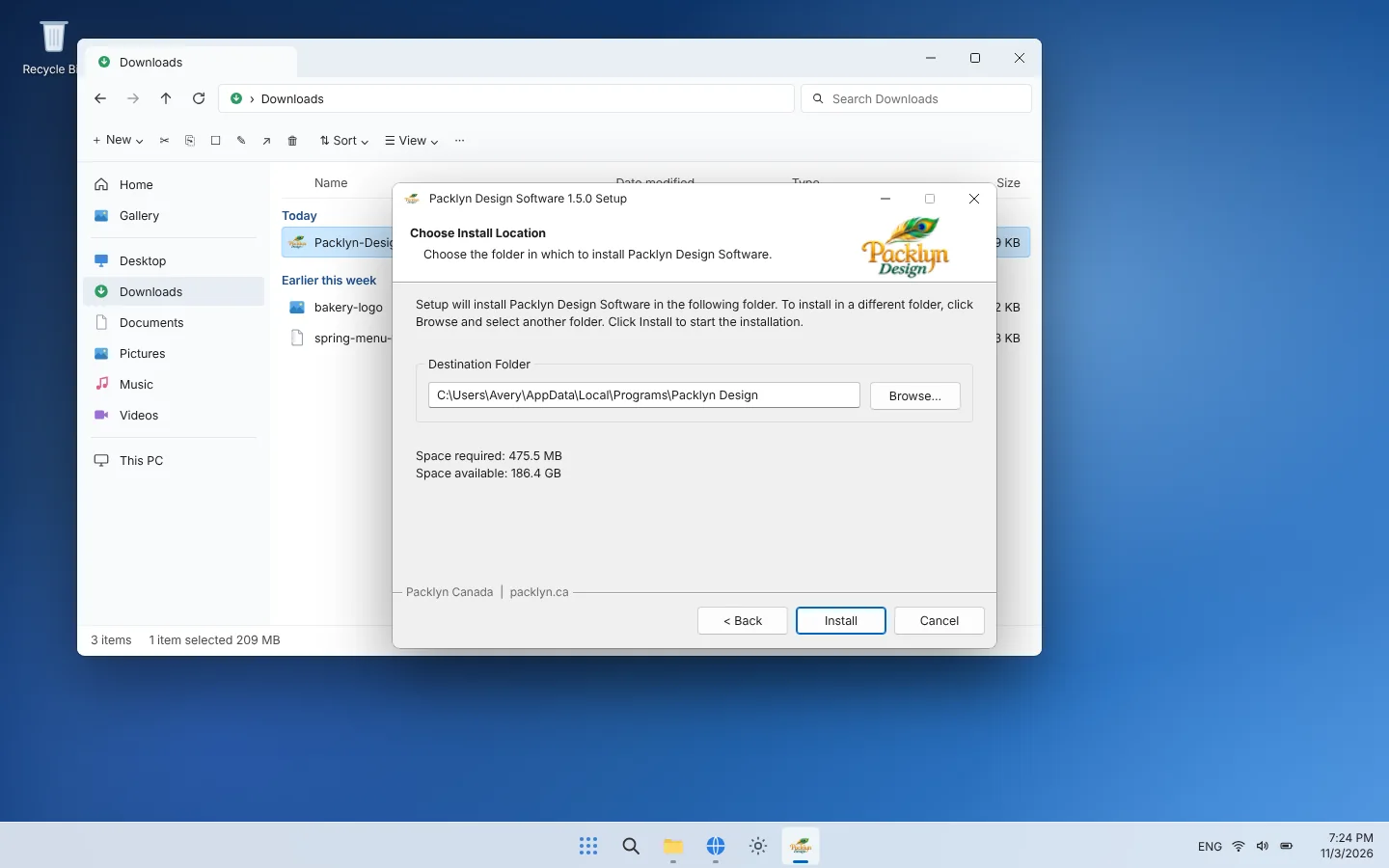
Read And Accept The End User Licence Agreement, Then Choose The Folder. The Suggested Folder Is %LOCALAPPDATA%\Programs\Packlyn Design; Most People Keep It. Press Install.
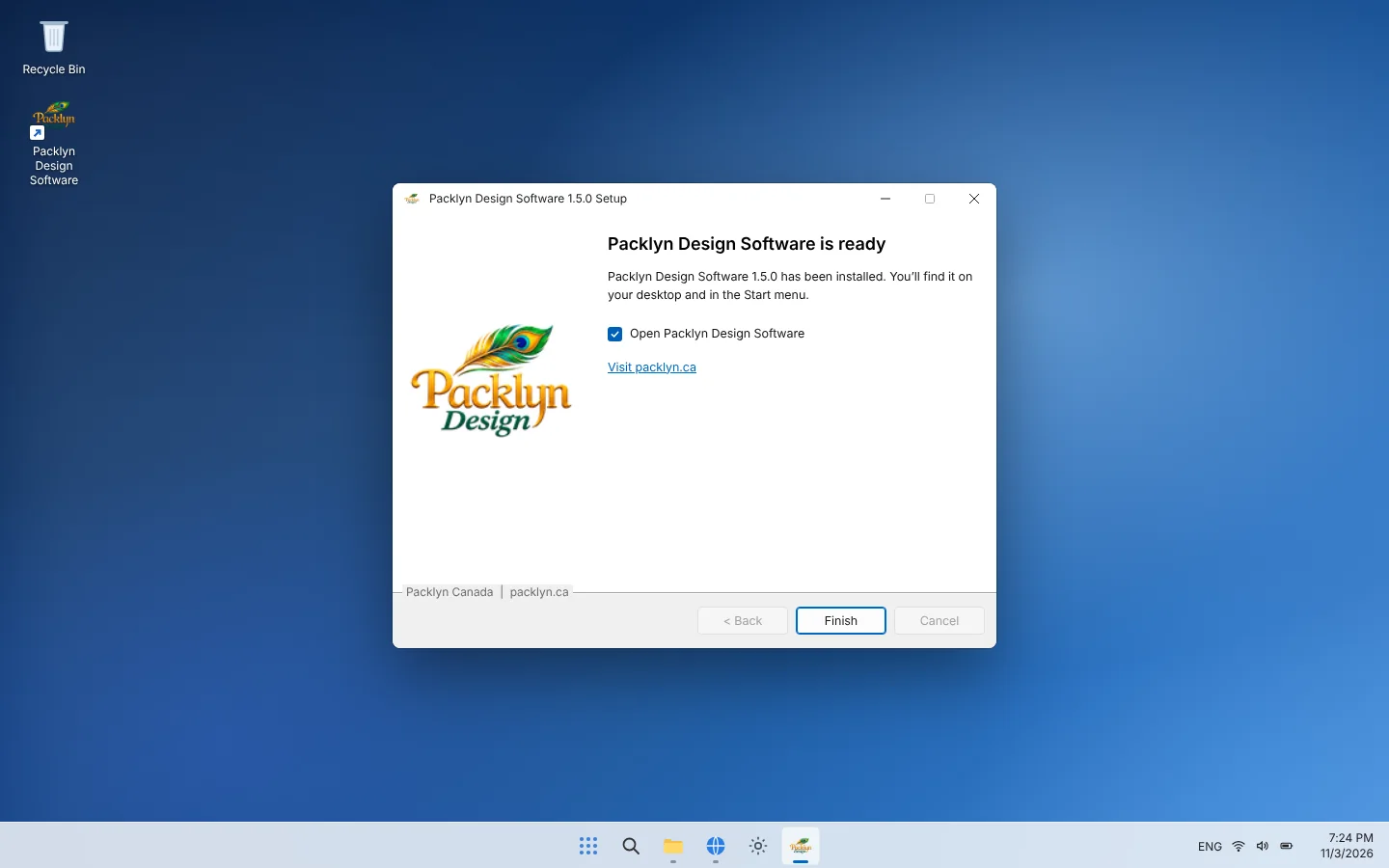
When The Progress Bar Completes, The Last Page Says Packlyn Design Software Is Ready. Shortcuts Are Added To Your Desktop And Start Menu. Keep Open Packlyn Design Software Ticked And Press Finish.
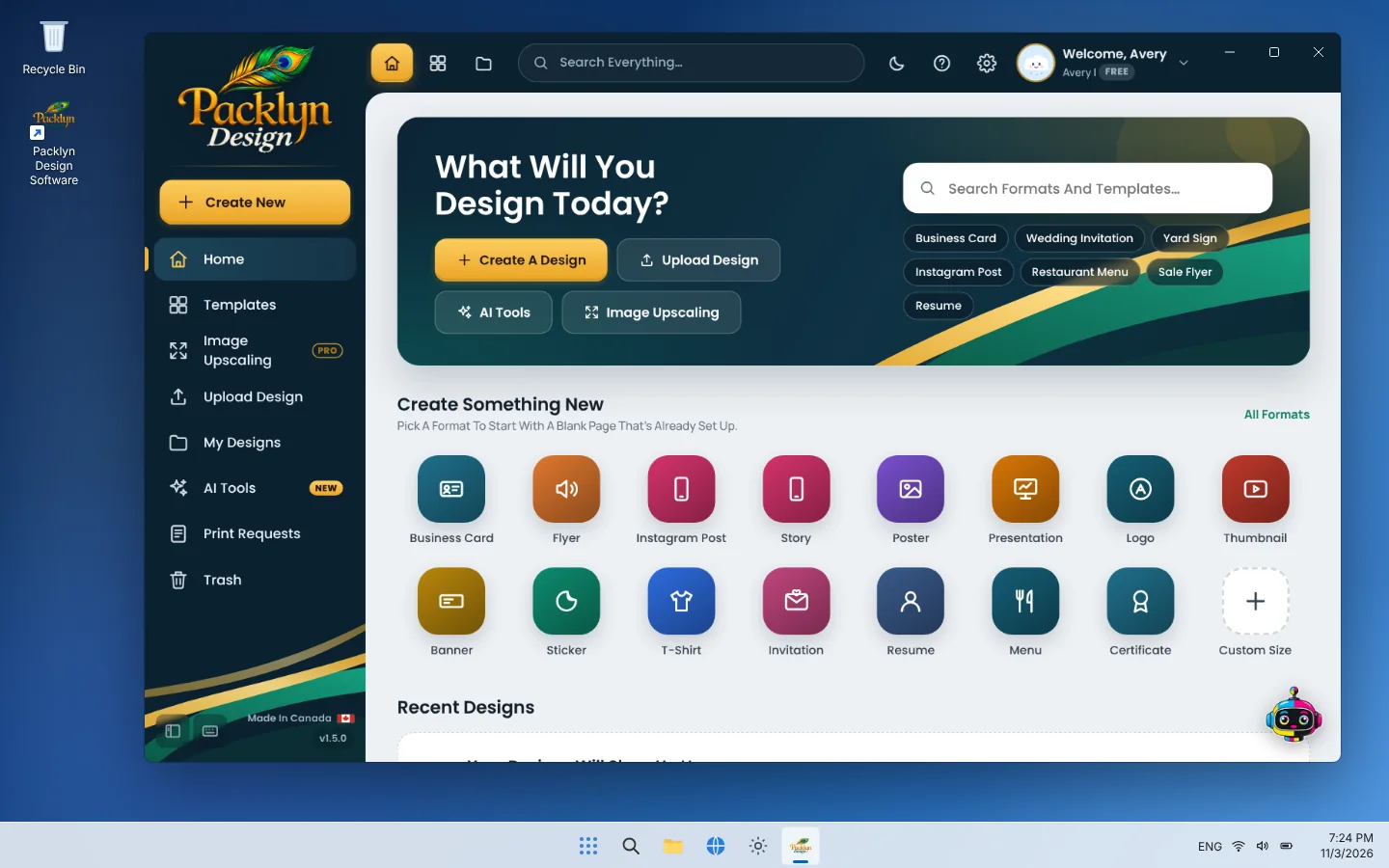
Open It Any Time From The Desktop Shortcut Or The Start Menu (Type Packlyn). The Home Screen Shows Templates For Every Print Product.
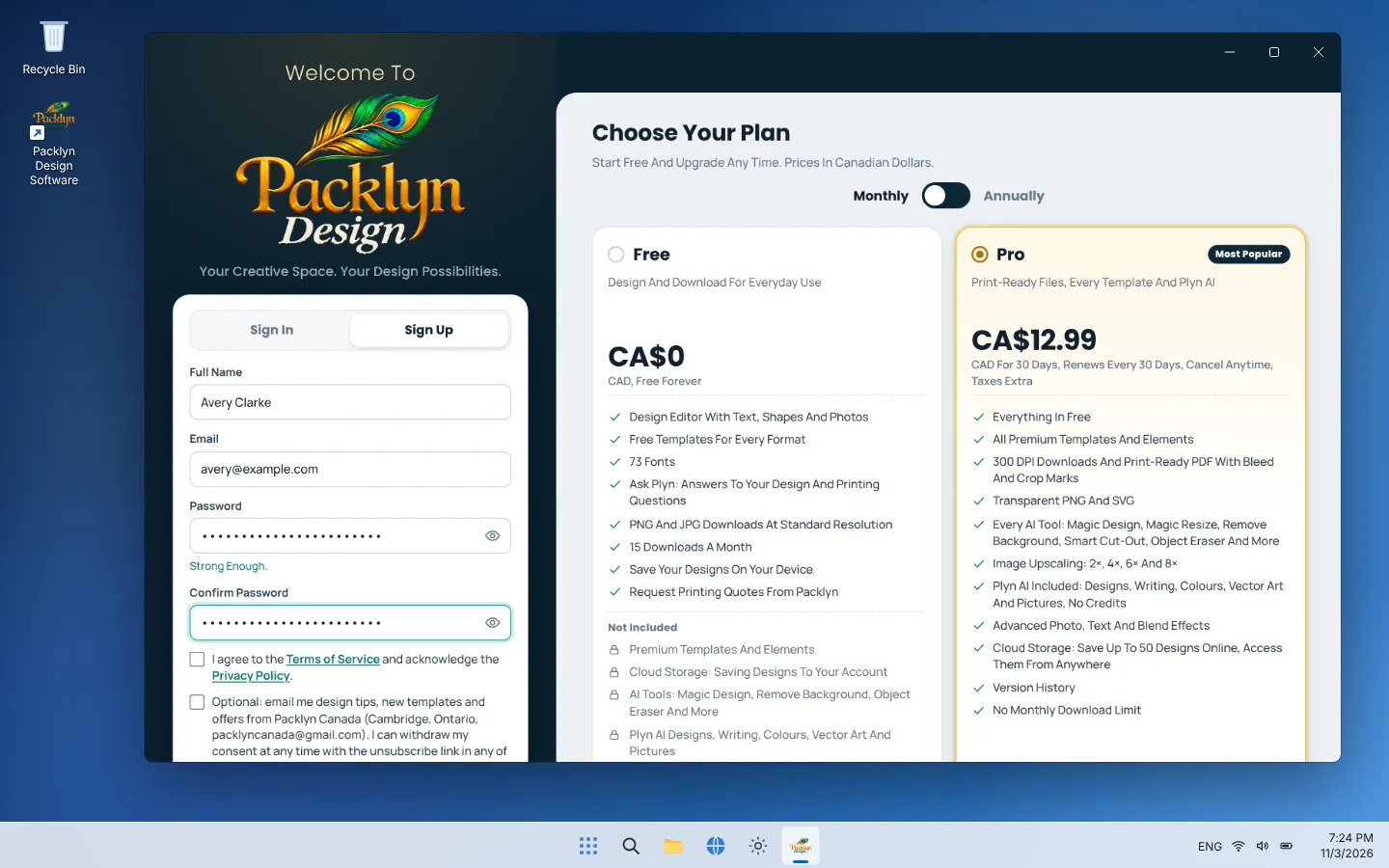
Choose Sign In And Then Create Account. Enter Your Name, Email And A Password, Accept The Terms, And Enter The 6-Digit Code We Email You. A Promo Code Can Be Added Here If You Have One.
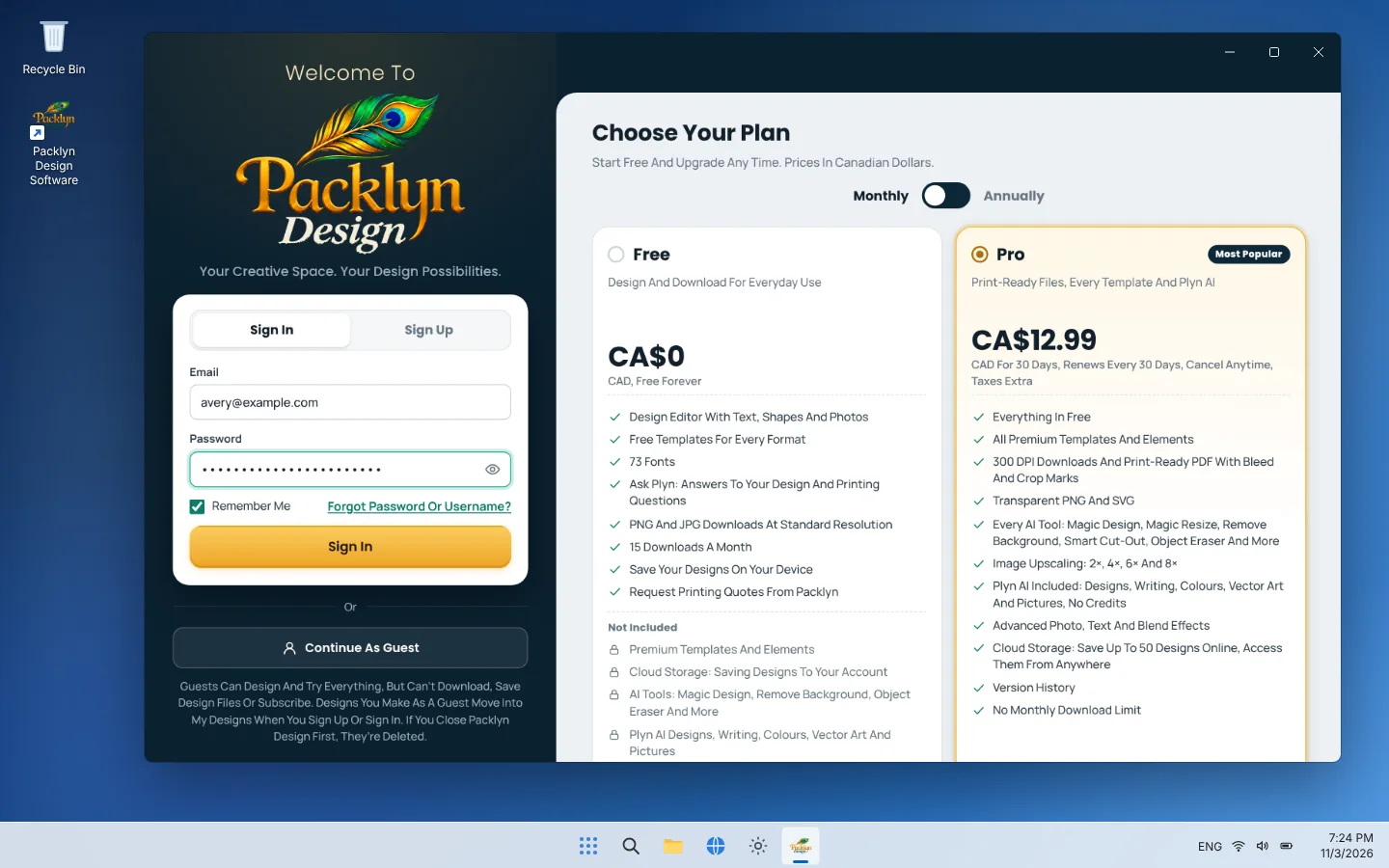
Next Time, Choose Sign In With The Same Email And Password. You Can Turn On Two-Step Sign-In In My Account For Extra Security.
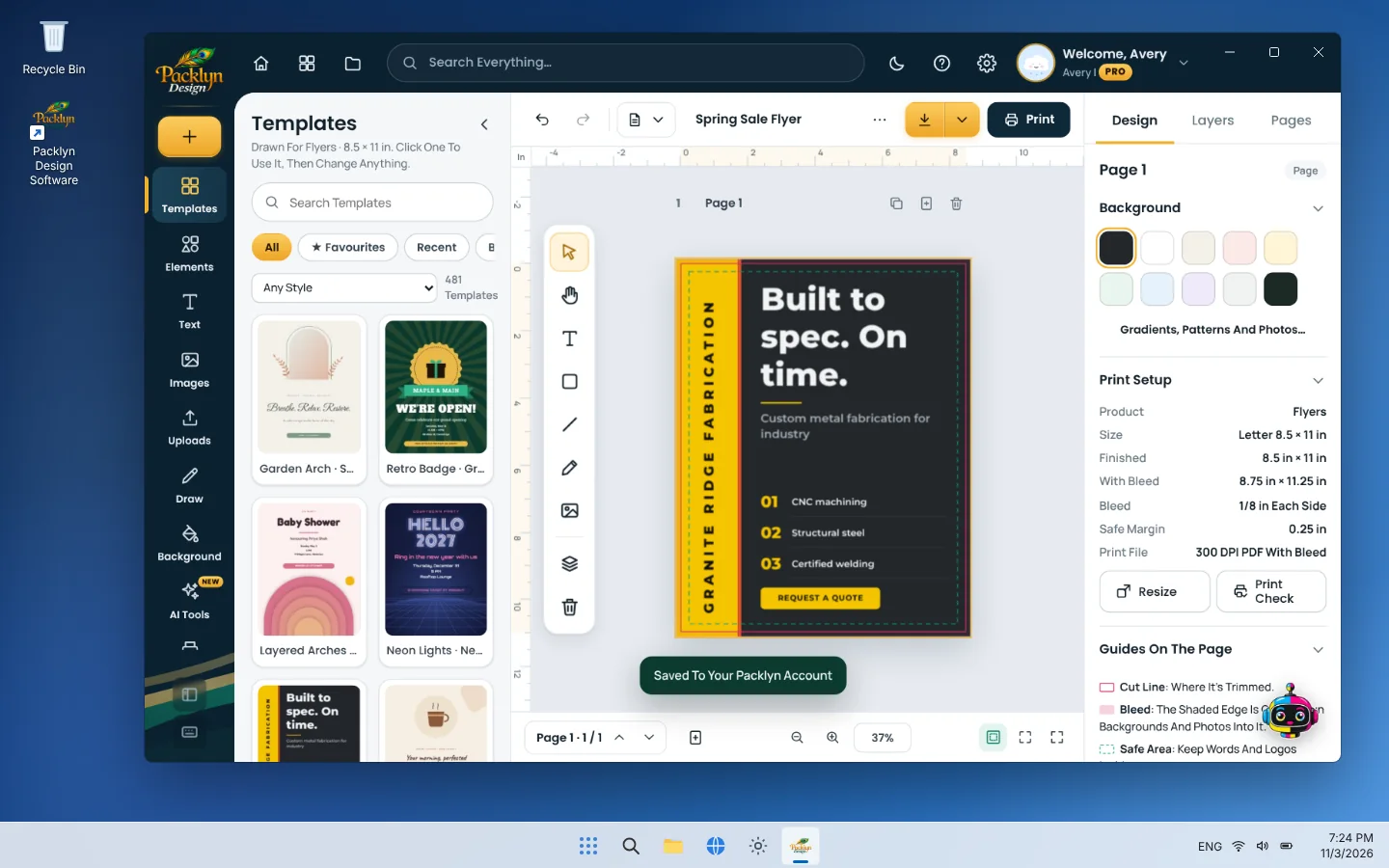
Pick A Template, Make A Change, And Your Design Saves Automatically On Your Computer. With Pro, It Also Saves To Your Account While You’re Signed In: A Message Shows Saved To Your Packlyn Account, And The Status Above The Page Says Saved To Your Account. On The Free Plan, Designs Can Only Be Saved To Your Device. Press Ctrl + S To Save At Any Time.
With Pro, Sign In With The Same Account On Another Computer Or Any Other Device, In The Windows App Or In Packlyn Design Online. Open My Designs › In My Account To See The Designs Saved There. Pro Saves Up To 50 Designs Online, Kept Until You Delete Them. If The Same Design Was Changed On Two Devices, Packlyn Design Asks Which Version To Keep, So Nothing Is Lost.
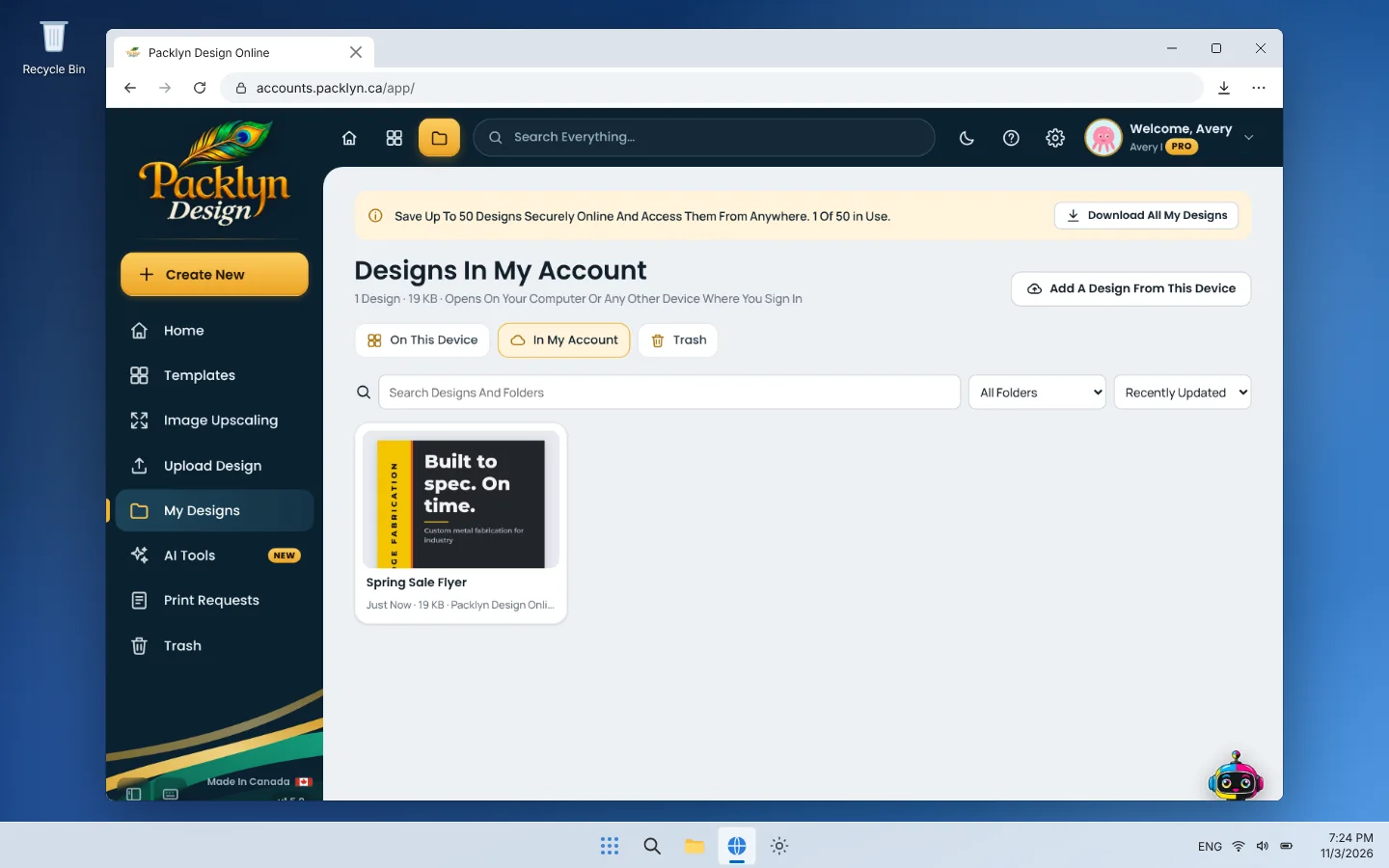
Updates Are Posted On packlyn.ca/packlyn-design With Their Date. Download The New Installer, Close Packlyn Design, And Install It Over The Old One In The Same Folder; Your Designs, Account And Settings Stay. The Online Version Always Runs The Latest Release.
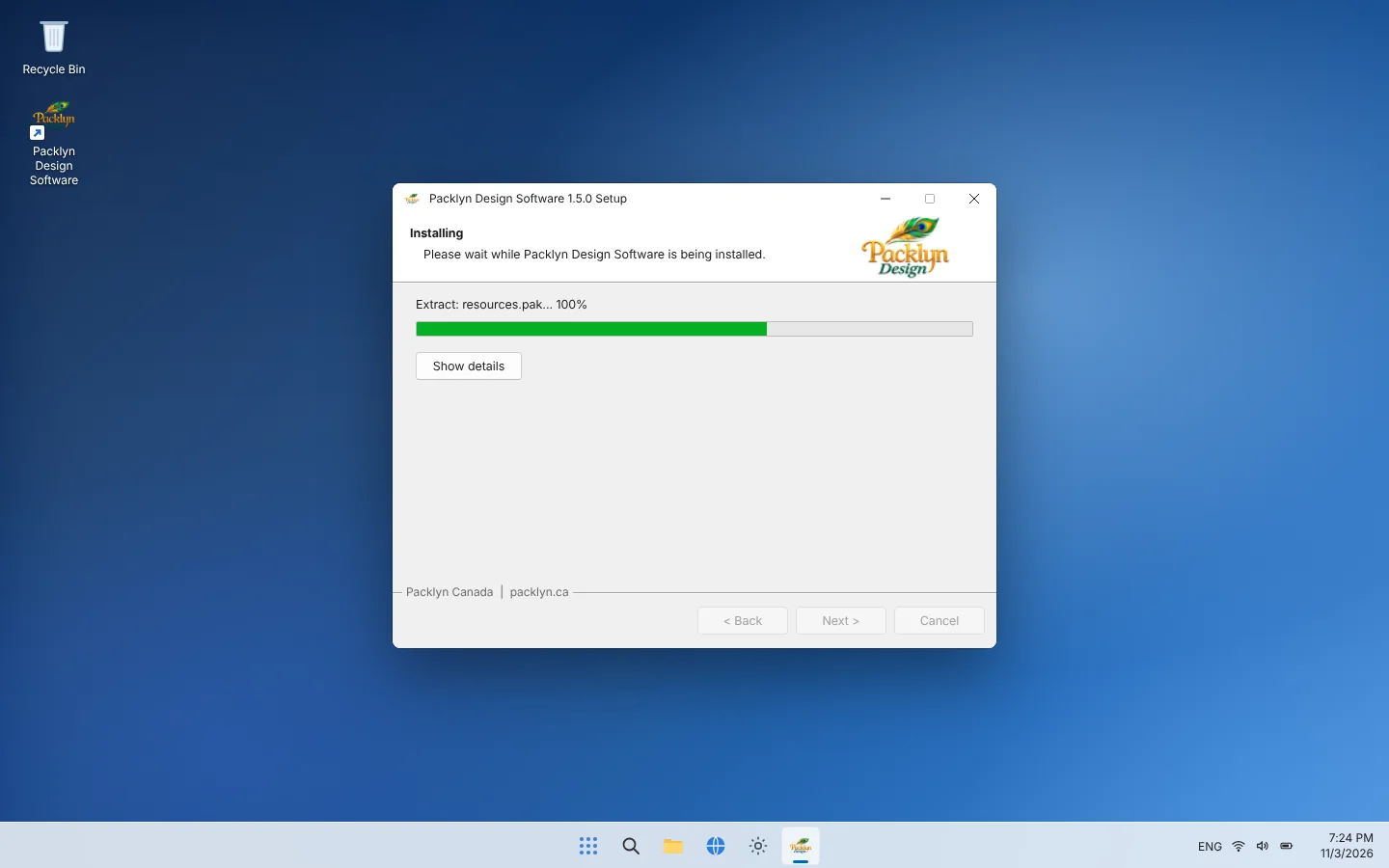
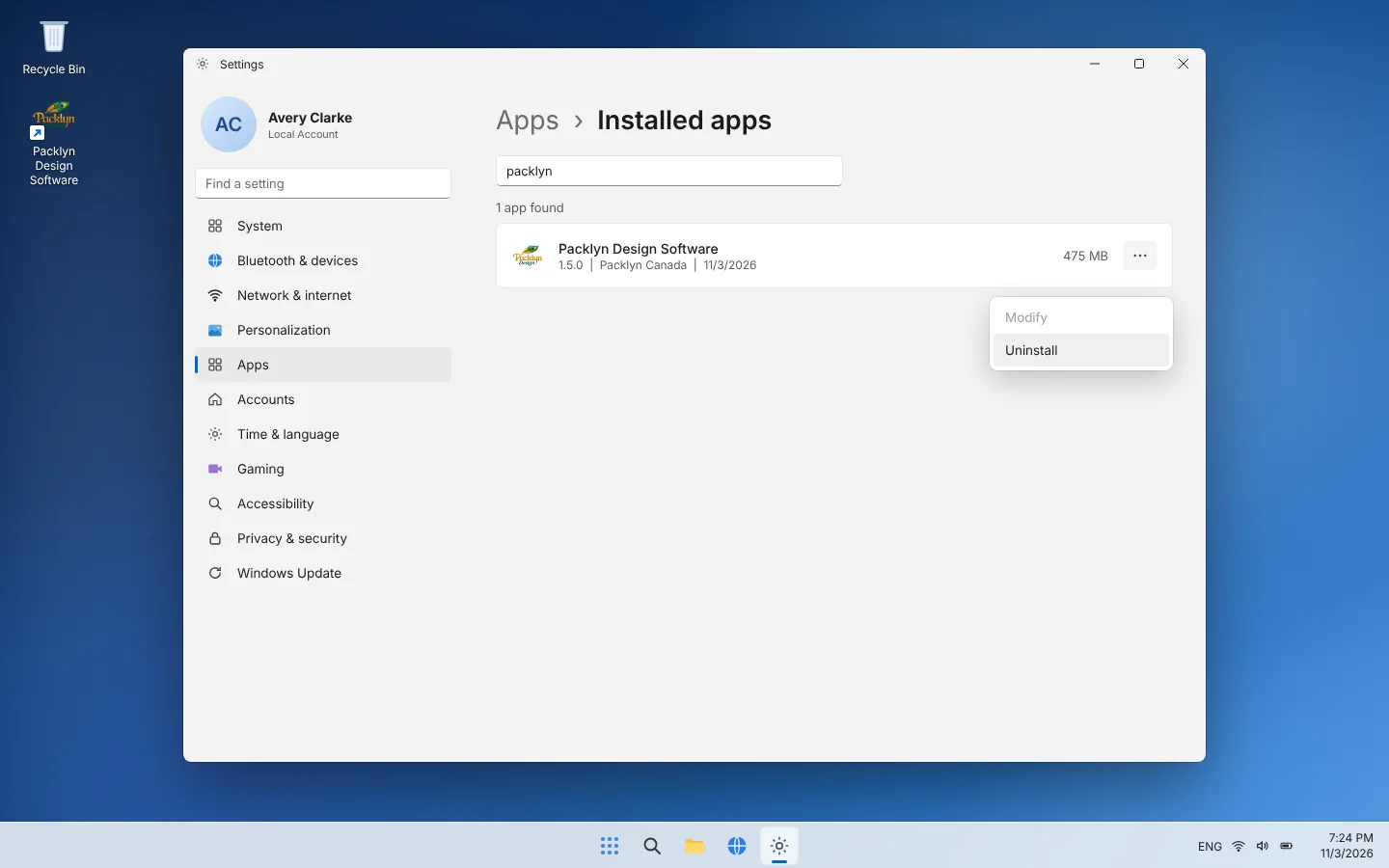
Open Settings › Apps › Installed Apps, Find Packlyn Design Software, Choose ··· › Uninstall. Designs Saved To Your Account Stay In Your Account Until You Delete Them. Designs Saved Only On This Computer Stay In Your Documents Folder Unless You Delete Them. To Close Your Account Too, Use My Account › Delete Account First.
Everything You Need To Promote Your Business, All Under One Roof.
Premium Stocks With Gloss & Matte Finishes.
Starts From$19Sharp, Vivid Flyers In Any Size And Quantity.
Starts From$29Vibrant Postcards For Mailers And Promotions.
Starts From$22Eye-Catching Hangers For Promotions And Services.
Starts From$125Premium Stock Or Laminated Menus And Multiple Page Booklets.
Starts From$24Gallery-Quality Posters In Large Formats.
Starts From$18Vivid, Lifelike Photo Prints On Premium Photo Paper.
Starts From$15Elegant Certificates On Premium Paper Stock.
Starts From$49Professional Letterheads For Your Business Stationery.
Starts From$255Branded Envelopes In A Range Of Sizes.
Starts From$220Slim, Durable Bookmarks In Paper Or Aluminium.
Starts From$24Hang Tags For Retail, Fashion And Gifts.
Starts From$29Durable Printed Tags For Bags And Luggage.
Starts From$25Vibrant Stickers In Any Size, Matte Or Gloss.
Starts From$20Roll Or Sheet Labels For Products And Packaging.
Starts From$500Printed Pouches For Retail.
Starts From$500Full-Body Printed Sleeves For Bottles And Jars.
Starts From$500Printed Folding Cartons For Retail Packaging.
Starts From$500Soft, Durable Tees For Teams And Brands.
Starts From$22Printed Caps With Lasting Color.
Starts From$20Personalized Mugs For Gifts And Merch.
Starts From$40Full-Color Magnets For Promotions.
Starts From$120Printed Coasters For Cafes, Bars And Events.
Starts From$44Acrylic And Metal Printed Keychains.
Starts From$90Durable Vinyl Branding For Cars And Other Vehicles.
Starts From$20Full And Partial Wraps That Turn Heads.
Starts From$700Frosted, Perforated And Full-Color Decals.
Starts From$15Full-Color Wallpaper For Walls And Feature Spaces.
Starts From$350Durable Floor Decals For Stores And Events.
Starts From$15Lightweight, Weatherproof Corrugated Plastic Signs.
Starts From$25Poster Signs On A Sturdy Pedestal Stand.
Starts From$90Fold-Flat A-Frame Signs For Sidewalks And Shops.
Starts From$175Light, Portable X-Banner Stands For Events.
Starts From$115Compact Signs For Counters, Tables And Desks.
Starts From$80Professional Signs For Listings And Open Houses.
Starts From$15Weatherproof Signs With H-Stakes.
Starts From$18Retractable Banners For Events And Shops.
Starts From$45Heavy-Duty Hemmed, Grommeted Vinyl Banners.
Starts From$30Wind-Friendly Mesh Banners For Fences.
Starts From$25Prototypes, Parts And 3D Prints.
Starts From$5Have Something Else In Mind? We Will Make It.
At Packlyn Canada, We Bring Over 35 Years Of Printing Industry Expertise, Backed By A Long-Established Printing Company.
Our Trusted Production Partners Bring Extensive Industry Experience, Including Previous Work With Globally Recognized Brands Such As Shown Below.









From Business Cards And Custom Packaging To Promotional Products, Signage, Vehicle Wraps, And Large-Format Printing, We Offer Comprehensive Printing And Branding Solutions Tailored To Your Needs.
We Believe That Quality Builds Trust, And Trust Builds Lasting Relationships. That’s Why We Focus On Delivering Outstanding Products, Reliable Service, And A Personalized Experience To Every Customer, Regardless Of The Size Of Their Business.
Backed By A Trusted Industry Partner With Over 35 Years Of Printing Experience.
Precision, Professionalism And Outstanding Products On Every Project.
Reliable Service And A Personal Experience For Every Customer, Big Or Small.
We’re Here To Bring Your Vision To Life And Become A Printing Partner You Can Rely On For Years To Come.
Frequently Asked Questions About Our Printing Services.
Packlyn Canada is a custom printing and personalization business based in Cambridge, Ontario, offering business printing, promotional products, signage, labels, and customized merchandise.
Packlyn Canada operates in Cambridge, Ontario, providing local pickup by appointment and shipping options across Canada.
Packlyn Canada offers business cards, flyers, booklets, stickers, labels, banners, signs, apparel customization, promotional merchandise, vehicle graphics, and 3D printing.
Yes. Packlyn Canada serves startups, independent professionals, small businesses, and established companies.
Yes. Packlyn Canada accepts inquiries for personal projects, gifts, celebrations, and customized products.
Yes. Many products start from a single piece, including posters, T-shirts, caps, mugs, car door stickers, window graphics, and selected signs and banners, while products such as business cards, flyers, letterheads, and labels have higher minimum quantities. The minimum is shown on each product page.
Yes. Packlyn Canada can prepare quotations covering multiple products with different sizes, materials, and quantities.
Yes. Packlyn Canada serves customers throughout Canada through available shipping arrangements.
Yes. Packlyn Canada provides printing products suitable for new businesses, including business cards, labels, signs, and promotional materials.
Yes. Customers can request banners, posters, signs, certificates, and other event-related printed products.
Yes. Packlyn Canada offers menus, promotional flyers, labels, stickers, and restaurant signage.
Yes. Real estate professionals can request property signs, business cards, flyers, postcards, and promotional materials.
Yes. Packlyn Canada offers retail branding materials, product tags, promotional displays, labels, and storefront graphics.
Yes. Submit your specifications through packlyn.ca so Packlyn Canada can review available production options.
Packlyn Canada offers stationery and marketing prints, stickers and labels, packaging, apparel and promotional products, vehicle, window, and floor graphics, signs and banners, and 3D printing.
Yes. Packlyn Canada offers 3D printing in PLA, PETG, ABS, ASA, and TPU, in a wide range of colors and custom sizes.
Yes. Packlyn Canada provides full-color printing for many compatible products and materials.
Yes. Packlyn Canada can print customer-supplied logos when suitable artwork files are provided.
Yes. Packlyn Canada prepares quotations based on product specifications, materials, quantities, and finishing requirements.
Visit packlyn.ca and send your inquiry by adding products to your Shopping List and pressing Final Step, or contact Packlyn Canada by phone, WhatsApp, or email from the Contact page.
Packlyn Canada prints on compatible cardstock up to 14 PT thick.
No. Packlyn Canada's maximum cardstock printing thickness is 14 PT.
14 PT cardstock is approximately 0.014 inches thick and is the cardstock used for business cards, postcards, door hangers, certificates, bookmarks, and product tags.
Yes. 14 PT cardstock provides a sturdy, professional option for business cards.
PT means points, a unit used to measure paper or cardstock thickness. One point equals 0.001 inch.
Lb stands for pounds and describes paper weight; within the same paper type, a higher number means heavier, thicker paper. Packlyn Canada uses 20 lb for letterheads, 24 lb for envelopes, and 80 Lb or 100 Lb gloss for flyers and booklets.
100 Lb gloss is heavier and thicker, giving a sturdier, more premium feel, while 80 Lb gloss is lighter and more economical. Both are available for flyers, booklets, pedestal/poster signs, and table top signs.
20 lb is the standard office paper weight, and 92 brightness gives a clean, bright white. Packlyn Canada uses it for letterheads, which are printed on 8.5x11 inch sheets.
24 lb paper is heavier than standard 20 lb paper and gives envelopes a more substantial feel. Packlyn Canada prints envelopes on 24 lb paper.
80 Lb gloss is a glossy coated paper that makes colors and photographs stand out. It is available for flyers, booklets, pedestal/poster signs, and table top signs.
100 Lb gloss is a heavier glossy coated paper with a sturdier, more premium feel, available for the same products as 80 Lb gloss.
Text paper, such as 80 Lb and 100 Lb gloss, is lighter and more flexible, while cover stock, such as 14 PT cardstock, is heavier and more rigid.
Coated paper has a treated surface that can improve smoothness and the reproduction of printed images.
Uncoated paper has a natural surface and is commonly used for writable documents, forms, and letterheads.
Glossy paper has a reflective surface that can enhance the vibrancy of photographs and graphics.
Matte paper has a low-reflection finish that creates a softer, more understated appearance.
Both are poster papers measured in mils, or thousandths of an inch. 6 mil poster paper is lighter and prints up to 58 inches wide, while 8 mil poster paper is thicker and sturdier and prints up to 28 inches wide.
A mil is one thousandth of an inch (0.001 inch). It describes the thickness of films and vinyl, such as (3 Mil) gloss lamination and 3 Mil Grey Back Vinyl.
Yes. Paper options depend on the product: 20 lb for letterheads, 24 lb for envelopes, 80 Lb or 100 Lb gloss for flyers and booklets, 6 mil or 8 mil for posters, and 14 PT cardstock for cards, with cardstock printing limited to 14 PT.
Consider the product's purpose, desired appearance, handling requirements, durability, and budget.
The most common size is 3.5x2 inch.
Include your name, company name, logo, phone number, website, and other essential contact details.
Yes. Packlyn Canada offers double-sided business card printing.
Business cards are printed on 14 PT cardstock, which is the maximum cardstock thickness Packlyn Canada prints on.
Lamination applies a protective film to printed cards, providing a matte or glossy finish.
Yes. Packlyn Canada offers matte finishing options for compatible business card orders.
Yes. Glossy finishing is available for compatible business card products.
Yes. QR codes can be incorporated into business card designs and should be tested before printing.
Yes. Choose Rounded Corners when ordering business cards. A custom shape can also be selected.
Bleed is extra artwork extending beyond the finished trim edge to prevent unwanted white borders.
Raster artwork should generally be prepared at 300 PPI at the intended print size.
Yes. Packlyn Canada accepts customer-supplied artwork for review and printing.
Yes. Design assistance can be requested, with applicable charges quoted separately.
Letterhead printing adds business branding and contact information to stationery used for professional correspondence.
Letterheads are printed on 20 lb paper with 92 brightness, an uncoated stock that is suitable for writing and most office printers.
Yes. Packlyn Canada prints envelopes on 24 lb paper in 5.75x8.75 inch and 4.125x9.5 inch sizes.
Letterheads and envelopes each start at a minimum quantity of 500 and increase in steps of 50.
Yes. 14 PT cardstock is suitable for many postcard applications.
Yes. Certificates can be printed on compatible cardstock up to 14 PT thick.
Personalized certificate printing can be requested using an accurate list of names.
Flyers are printed on 80 Lb or 100 Lb gloss paper, which brings out vivid colors and sharp photographs. 100 Lb is the heavier, more premium option.
Packlyn Canada offers flyers in 5x8 inch, 8.5x11 inch, and 11x17 inch sizes, and a custom size can also be ordered.
A flyer is generally a single flat sheet, while a brochure uses folds to organize information. Flyers can be ordered with No Fold, Half-Fold, or Tri-Fold, so one product covers both uses.
A tri-fold brochure contains three sections and six printable panels.
A half-fold flyer is folded once in the middle, creating four panels.
Text-weight gloss paper folds easily while presenting images and text clearly, which is why folded flyers and booklets are printed on 80 Lb or 100 Lb gloss.
Yes. Choose Double Side printing when ordering flyers.
A stapled booklet consists of folded sheets secured along the spine with staples.
Saddle stitching secures folded booklet pages using staples placed along the center fold.
Each folded sheet produces four pages, so the total page count normally increases in multiples of four.
Booklets are printed double-sided on 80 Lb or 100 Lb gloss paper, folded in half, and staple-bound, with the number of pages you choose.
Booklets start at a minimum quantity of 1 and increase in steps of 1.
Door hangers are promotional cards designed to hang on door handles for local advertising.
3.5x8.5 inch and 4.5x11 inch are the standard door hanger sizes, and a custom size can also be ordered.
Yes. 14 PT cardstock can provide suitable rigidity for door hangers.
Yes. Packlyn Canada offers double-sided door hanger printing.
Bookmarks are personalized reading accessories used for gifts, advertising, and promotional campaigns.
Yes. Bookmarks are available on 14 PT cardstock for a sturdy feel, or in aluminium for a premium, long-lasting option.
Yes. Compatible printed menus can be laminated to improve their resistance to handling and surface moisture.
Yes. Bookmarks include a Bookmark Tassel option, so you can choose With Tassels or No Tassels.
Stickers are often decorative or promotional, while labels commonly identify products or communicate information.
Vinyl stickers are printed graphics made from flexible adhesive-backed vinyl.
Paper stickers, such as semi-gloss label paper, are best for dry indoor use, while matte vinyl and paperback gloss vinyl offer greater moisture resistance.
Water resistance depends on the vinyl, adhesive, printing method, and protective finishing.
A die-cut sticker is cut precisely to the outline of your design, so it can be any custom shape. Die cut stickers are printed on 3 Mil Grey Back Vinyl.
Weeding removes the excess vinyl around a design, and transfer tape holds the design in place so it can be applied to a surface in one piece. Die cut stickers include the Weeding & Transfer Tape finish.
It is an adhesive vinyl that is 3 mil (0.003 inch) thick with a grey adhesive backing. Packlyn Canada uses it for die cut stickers, car door stickers, and window graphics.
Sticker sheets contain multiple individually cut designs arranged on one backing sheet.
Roll labels are adhesive labels supplied continuously on a roll.
Roll labels are convenient for repetitive labeling, while sheets are often practical for smaller manual applications.
Metallised BOPP and PET labels, along with silver and gold foil labels, have a reflective metallic finish that gives packaging a premium look.
Labels start at a minimum quantity of 5,000 and increase in steps of 500.
Transparent BOPP and transparent PET labels use clear film so the surface underneath shows through, creating a clean no-label look on bottles and packaging.
White ink may be needed for printing on transparent, metallic, or dark materials. Confirm opaque white artwork with Packlyn Canada before ordering.
Thermal paper is a heat-sensitive label material used for applications such as shipping, barcode, and receipt labels.
BOPP is a flexible, moisture-resistant film commonly used for product labels, while PET is a stronger, more heat-resistant film. Both are available in white, transparent, and metallised versions.
Yes. Label materials should be selected according to container curvature, moisture exposure, and handling.
Refrigerated products require materials and adhesives compatible with cold temperatures and condensation.
Packaging labels display branding, product information, instructions, and other details on packaging.
Yes. Packlyn Canada offers customized logo stickers in compatible sizes, shapes, and materials.
PDF, AI, EPS, SVG, TIFF, and high-resolution image formats are commonly used, depending on production requirements.
PDF can preserve page dimensions, fonts, and vector graphics, helping maintain design consistency.
Vector artwork uses mathematical paths that can be resized without ordinary pixelation.
Vector logos maintain sharp edges when resized for small labels or large signs.
PNG supports lossless storage and transparency, while JPEG uses lossy compression and is commonly used for photographs.
No. Enlarging a low-resolution image does not restore missing detail.
DPI stands for dots per inch and describes output resolution in relevant printing contexts.
PPI stands for pixels per inch and describes image pixel density at a specified physical size.
It generally provides sufficient detail for close-viewed printed images.
Large graphics viewed from a distance may work with lower effective resolution, depending on size and viewing conditions.
A safe margin keeps important text and graphics away from cutting edges.
A standard bleed of 0.125 inch (3.175 mm) on each side is recommended, with backgrounds and images extended into it. Some large-format and specialty products need different bleed.
A cutting path defines the outline followed by the cutting equipment for custom shapes such as die cut stickers, custom-shaped cards, and window graphics.
A dieline shows cutting, folding, and other structural requirements, and is used for products such as mono cartons and pouches.
Outlining fonts can prevent substitution issues when artwork is opened on another computer.
Embedding includes font information within a document so it displays and prints consistently.
Preflight checks artwork for technical issues such as missing fonts, incorrect dimensions, or low resolution.
Packlyn Canada can review artwork for production suitability, with any required corrections discussed separately.
A digital proof is a preview used to check artwork content and layout before production.
No. Screen settings, paper, inks, and production conditions can affect printed color appearance.
CMYK uses cyan, magenta, yellow, and black colorants to reproduce printed colors.
RGB uses red, green, and blue light to display colors on digital screens.
Screens emit light, while printed surfaces reflect light, creating differences in achievable colors.
Pantone is a standardized color-reference system used to communicate specific color targets.
No. Some Pantone colors fall outside the color range of standard CMYK printing.
(3 Mil) means the protective film is 3 mil (0.003 inch) thick. It is available in gloss or matte on products such as business cards, postcards, door hangers, certificates, bookmarks, product tags, and stickers.
For double-sided prints, Laminated On lets you choose whether lamination is applied to a single side or to both sides.
Business cards, postcards, door hangers, certificates, bookmarks, product tags, and most stickers can be laminated, while labels and mono cartons offer additional lamination types such as soft-touch and anti-scratch.
Gloss lamination applies a shiny protective film that can enhance color vibrancy.
Matte lamination creates a protective surface with reduced reflection.
Soft-touch lamination uses a specialty film to create a smooth, velvety surface feel.
UV coating is a liquid finish cured using ultraviolet light.
Spot UV applies a glossy coating to selected design elements.
Foil stamping transfers decorative foil onto a compatible surface using a specialized process.
Embossing creates a raised impression in paper or cardstock.
Debossing presses a design into a material to create a recessed effect.
Anti-scratch lamination is a protective film that resists scuffs and scratches, and it is available for labels and mono cartons.
Scoring creates a controlled crease that helps paper or cardstock fold.
Window patching adds a clear film over a cut-out window in a mono carton so customers can see the product inside.
Specialty finishing availability varies. Packlyn Canada can confirm compatible options when preparing a quotation.
Large-format printing produces oversized graphics such as banners, posters, signs, and display materials.
A roll-up banner is a portable advertising display whose printed graphic retracts into a base.
Roll-up banners are available in 11x17 inch and 33x78 inch sizes, and 33x78 inch is the popular full-size display.
Economy banner material is front lit, while Premium is blockout material that stops the graphic showing through. The stand is chosen separately as Economy or Premium, and the Premium Stand is available for the 33x78 inch size.
Some stands support graphic replacement, depending on their construction and compatibility.
An X-banner stand sign holds a 23x63 or 32x78 inch printed graphic on a lightweight aluminium alloy X-shaped frame, and it is double-sided with one side for each insert.
Table top signs are compact 8.5x11 inch acrylic signs for counters, desks, and tables, printed on 80 Lb or 100 Lb gloss paper on one or both sides.
Vinyl banner printing produces durable graphics on flexible banner material, such as 13 Oz Frontlit or 13 Oz Blockout for wall banners.
13 Oz refers to the nominal weight of the banner material. 13 Oz Frontlit is available for wall banners and fence banners, while 13 Oz Blockout is a light-blocking material for wall banners.
Mesh banner material contains small openings that let wind pass through, which is why it is available for fence banners.
Grommets are reinforced rings that allow a banner or sign to be attached with rope, ties, or hooks. Corner grommets are available on wall banners, fence banners, and Coroplast signs, and real estate signs offer grommets on top.
A hemmed edge folds and secures the banner perimeter for additional reinforcement. Wall banners and fence banners offer With Hemming or No Hemming.
On wall banners, you can choose grommets with or without hemming. On fence banners, corner grommets are available together with hemming because the hem reinforces the corners.
A wall banner is a printed promotional graphic designed for mounting on a suitable wall.
A fence banner is a printed advertising graphic attached to compatible fencing.
Coroplast is a brand name commonly associated with lightweight corrugated polypropylene sheet used for signage.
Yard signs are printed on 4mm Coroplast and supplied with stainless steel H-stakes for placing in the ground.
H-stakes are metal wire supports used to hold compatible yard signs in the ground.
Yes. Double-sided printing can be requested for compatible corrugated plastic signs.
Yard signs come in 12x12, 12x18, 15x15, 12x24, 16x24, and 18x24 inch sizes, starting from a minimum of 1 sign.
An A-frame sign is a freestanding, two-sided display. Packlyn Canada. A-frame signs use a stainless steel frame with 4mm Coroplast inserts in 18x24, 24x24, 24x32, and 24x36 inch sizes.
Pedestal/poster signs hold an 8.5x11 or 11x17 inch printed poster on a stainless steel stand, with a choice of 80 Lb or 100 Lb gloss print material.
A real estate sign is a property advertising panel printed on 4mm Coroplast in a custom size, with grommets on top for hanging.
Roll-up banners, X-banner stand signs, table top signs, pedestal/poster signs, and A-frame signs are portable options for events, while Coroplast signs and yard signs suit outdoor promotions.
Consider expected lifespan, rigidity, weight, installation method, environmental exposure, and budget.
Window graphics are printed or cut films applied to glass for advertising, branding, privacy, or decoration.
Perforated window vinyl contains small openings that allow partial visibility through the material, and it is available in 50/50, 60/40, and 70/30 perforation ratios.
It combines perforations with lighting differences to create a graphic-facing side while allowing partial visibility from the opposite side.
No. Visibility depends on lighting conditions, material specifications, and installation.
Frosted window film creates a translucent, etched-glass appearance.
Cut vinyl lettering uses individually shaped adhesive graphics to display names, operating hours, or messages.
Reverse-cut lettering is mirrored for installation on the inside of glass facing outward.
Yes. Full-window graphics can be requested, subject to material suitability and applicable requirements.
Many window films can be removed, although removal difficulty and residue vary.
Material quality, sunlight, adhesive compatibility, installation, and cleaning practices affect durability.
Vehicle wrap printing produces graphics on specialized films from brands such as ProPrint, Orafol, Avery, and 3M, intended for compatible vehicle surfaces.
A full wrap covers most of a vehicle's exterior painted body panels with graphic film.
A partial wrap covers selected vehicle sections rather than the entire exterior.
Car door stickers are adhesive vinyl graphics for vehicle doors and other suitable surfaces, available from 6x6 inch up to 24x36 inch, or in a custom size.
Vehicle lettering displays company names, websites, phone numbers, or other information using adhesive graphics.
Fleet branding applies consistent business graphics across multiple company vehicles.
Cast vinyl is a film manufactured through a casting process and is commonly selected for demanding graphic applications.
They describe the balance between printed vinyl and open holes. A higher printed share gives a bolder graphic, while a higher open share lets more light and visibility through.
Overlaminate is a protective film applied over printed vehicle graphics.
Provide the vehicle's make, model, year, photographs, required coverage, and artwork details.
Custom packaging printing adds branding, product information, and graphics to packaging such as pouches, shrink sleeves, mono cartons, and labels.
Stand-up pouches are flexible packages designed to stand upright using a shaped or gusseted base.
A zipper pouch includes a resealable closure designed for repeated opening and closing. Pouches can be ordered With Zipper or Without Zipper.
Pouches are available as Stand-Up, 3-Side Seal, Quad Seal, Center Seal, 3D, and customised flexible packaging pouches, with or without a zipper, starting at 5,000 pieces.
Shrink sleeves are printed films that contract around containers when heated. Packlyn Canada offers full-body, partial-body, tamper-evident, multipack, and promotional sleeves in PETG, PVC, or recyclable materials.
Shrink sleeves conform around containers using heat, while adhesive labels attach directly through an adhesive layer.
Flexible packaging uses bendable materials such as films, pouches, and wraps.
Mono cartons are printed folding cartons for retail packaging, made from board such as FBB, SBS/SBB, duplex, ivory, kraft, or recycled paperboard, with a minimum quantity of 5,000.
Custom T-shirt printing applies personalized logos, graphics, or text to compatible garments.
Yes. Logos can be applied using a decoration method suitable for the garment.
T-shirts are 100% polyester, a fabric that works well with dye-sublimation printing for vivid, lasting color.
Sublimation uses heat to transfer special dyes into compatible coated products or polyester-based materials.
Yes. Compatible garment-decoration methods can reproduce full-color photographic artwork.
T-shirts are available in short sleeve or long sleeve, in sizes S to XXXL, in white or light grey, and other light colors can be requested.
Custom printed caps are available as trucker caps or baseball caps made of polyester and cotton, with your logo or design printed on the front.
Custom mug printing applies personalized artwork, photographs, or logos to the outside of white ceramic mugs in 11 oz or 12 oz sizes.
A sublimation mug has a coating designed to accept dye-sublimation transfers.
Luggage tags are durable 2.7x3.9 inch tags made from MDF and PVC, printed on one or both sides for bags and suitcases. The minimum order is 4.
Choose from Front, Back, Left Sleeve, and Right Sleeve, and select more than one print location in the same order.
T-shirt prints can be ordered in a custom print size up to 7.5x13 inch.
Fridge magnets are full-color printed magnets made on a metal plate with a high-gloss polymer coating.
Fridge magnets come in 4.13x2.95 inch and 1.97x1.97 inch sizes, printed on a single side, with a minimum order of 30.
Custom coasters are available in 3.5x3.5 inch or 4x4 inch, in circle or square shapes, made from MDF and cork with personalized artwork, logos, or promotional messages. The minimum order is 4.
Custom printed keychains are available in acrylic, aluminium, or MDF, in circle, square, or other shapes, printed on one or both sides.
Product tags are printed attachments used to display branding, pricing, care instructions, or product details. They can be ordered with options such as a top hole, string ties, and elastic loops.
Poster printing produces large, vivid graphics for advertising, decoration, announcements, or information displays. Posters are ordered in a custom size, printed on a single side on 6 mil or 8 mil poster paper.
Common sizes include 11x17 inch, 18x24 inch, and 24x36 inch.
Yes. Posters have a minimum quantity of 1.
Floor graphics are printed anti-slip floor decals for stores and events, available in rectangular, circle, square, or custom shapes.
Custom wallpaper features personalized patterns, photographs, artwork, or business branding.
Provide the width and height of the wall area, the number of walls, and your artwork. If you are unsure of the size, choose Not Sure on the product page and Packlyn Canada will help.
For printed wallpapers, window graphics, floor graphics, and vehicle wraps, choose Not Sure on the size step and Packlyn Canada will help determine the size.
ABS is a tough, heat-resistant thermoplastic used for functional parts. ASA is similar but resists sunlight and weather better, which makes it suitable for outdoor parts.
3D prints can be ordered in many colors, including white, black, grey shades, reds, blues, greens, yellows, pinks, purples, and pastels, organized into color categories on the product page.
3D printing creates physical objects by building material layer by layer from a digital model.
Fused deposition modeling uses heated thermoplastic filament deposited in successive layers.
PLA is a thermoplastic commonly used for decorative models and general-purpose prototypes.
PETG is a thermoplastic often selected for its toughness and useful mechanical properties.
TPU is a flexible thermoplastic used for certain elastic or impact-resistant components.
Provide a digital model or detailed dimensions, quantity, intended use, material (PLA, PETG, ABS, ASA, or TPU), and color preference.
Submit your requirements through packlyn.ca, including product details, quantity, dimensions, and artwork.
Provide the product type, finished size, quantity, material, finishing, artwork status, and delivery requirements.
Production setup, material usage, equipment efficiency, and finishing costs affect the price per unit.
A design fee covers agreed creative work such as preparing layouts, editing artwork, or developing print-ready graphics.
Yes. Changes can be requested during proofing, with additional charges depending on the project.
Proof review helps identify spelling errors, incorrect information, and layout problems before production.
Yes. Packlyn Canada generally requires a 50% deposit unless different payment terms are agreed upon.
Yes. Packlyn Canada can review your specifications and determine whether design assistance is required.
Yes. Reference images can help communicate your preferred style, layout, or product appearance.
Yes. Provide the previous artwork or order details and confirm whether changes are needed.
Many standard orders are typically completed within 2–4 business days after approval, depending on the product and workload.
Yes. Rush printing can be requested, subject to product eligibility and production capacity.
Same-day printing may be available for eligible products when production capacity allows.
Packlyn Canada's standard same-day printing request cutoff is 12 PM, subject to confirmation.
Yes. Pick up from the Packlyn Canada studio in Cambridge, Ontario, is free and arranged by appointment. Delivery to your address is also available for an additional charge.
Packlyn Canada operates on an appointment-only basis. Please arrange your visit before arriving.
Packlyn Canada's stated business hours are 11 AM to 10 PM, with visits arranged by appointment.
Local pickup is generally arranged by 9 PM, subject to confirmation.
Yes. Packlyn Canada offers shipping options across Canada, depending on the product and destination.
No. Production and shipping are separate stages, and transit times depend on the carrier and destination.
Incomplete artwork, proof revisions, material availability, payment delays, and production workload may affect completion.
Retain the packaging, take photographs, and contact Packlyn Canada promptly with your order information.
Minimums vary by product and are shown on each product page. Posters, T-shirts, caps, mugs, and window graphics start at 1, business cards at 50, flyers at 100, letterheads and envelopes at 500, and labels, pouches, shrink sleeves, and mono cartons at 5,000.
Contact Packlyn Canada with your order details and clear photographs so the concern can be reviewed.
Packlyn Canada provides a wide range of custom printing, signage, promotional merchandise, and personalized products. Customers can request tailored quotations, local pickup by appointment, and shipping options across Canada at packlyn.ca.

Your AI Printing Assistant at Packlyn Canada
Welcome to Plyn, the friendly AI-powered printing assistant at Packlyn Canada!
Whether you're exploring printing options, comparing materials, understanding sizes, or looking for information about our products, Plyn is here to make your printing journey easier.
No complicated printing terminology. No endless searching. Just helpful answers when you need them.
Plyn is the dedicated AI assistant developed for Packlyn Canada, designed specifically to help customers with printing-related questions and information about our company.
Unlike general-purpose AI chatbots, Plyn focuses exclusively on printing, packaging, customization, and the products and services offered by Packlyn Canada.
From understanding paper thickness to choosing the right printing material, Plyn helps you make more informed decisions.
Plyn's printing knowledge covers paper and colour, artwork and file preparation, finishes, large-format and signage, labels and packaging, apparel and promotional items, 3D printing, and the practical side of planning and pricing a print job.
Think of Plyn as your digital printing guide, available 24/7.
Explore the printing products and services offered by Packlyn Canada, including business cards, flyers, brochures, booklets, stickers, labels, banners, signs, packaging, promotional products, and more.
Confused about paper thickness, cardstock, glossy finishes, matte finishes, or different printing materials?
Plyn can explain your options in simple, easy-to-understand language.
Not sure which size is right for your project?
Plyn can help you understand standard printing dimensions, custom sizes, measurements, and common size conversions.
Learn about printing requirements such as:
Discover different printing finishes, material options, lamination, die-cutting, and customization possibilities.
Plyn can help explain which options may be suitable for your project.
Have questions about what affects printing costs?
Plyn can explain factors such as quantity, dimensions, materials, finishes, and customization.
Any pricing information provided by Plyn is for general guidance unless explicitly confirmed by Packlyn Canada.
Tell Plyn what you need in your own words, for example "500 business cards, double sided, matte" or "two roll-up banners and 100 flyers".
Plyn fills in the product options for you, asks only for what is missing, adds the items to your Shopping List and then prepares your quote request, with your details filled in, for your final review.
You always press the Submit button yourself. Plyn never sends anything on your behalf.
Ask Plyn about the printing products, general services, website information, and customer assistance offered by Packlyn Canada.
Printing questions don't always come up during business hours. Plyn is available whenever you need general printing guidance.
Get quick answers to common printing questions without waiting for a customer service representative.
Plyn explains printing terminology in clear, straightforward language, whether you're a first-time customer or an experienced business owner.
Plyn answers questions about printing, packaging and signage from a print business point of view, and politely declines anything unrelated.
Compare materials, explore possibilities, and understand common printing requirements before placing an order.
There is no additional charge to ask Plyn general printing questions through the Packlyn Canada website.
While Plyn is designed to provide helpful information, Plyn is an AI assistant, not a human printing specialist.
Plyn cannot independently:
Plyn may occasionally provide incomplete, outdated, or inaccurate information.
For order-specific questions, confirmed quotations, production requirements, or special requests, please contact Packlyn Canada directly.
Plyn has one special focus: printing, packaging, signage and Packlyn Canada.
Plyn is not designed to answer unrelated questions about entertainment, politics, animals, personal advice, or other general topics, and will politely say so if asked.
If a printing, packaging or signage question is outside what Plyn already knows, Plyn can look it up online and explain what is found the way a print business would, naming where the information came from.
Information found online is general guidance only and may be incomplete or out of date, so please double-check anything important with our team.
When chatting with Plyn, please avoid sharing sensitive personal information, payment card details, passwords, or confidential documents.
When you ask Plyn to set up an order, the items and contact details you give Plyn stay in your browser to build your Shopping List and quote request. Nothing is sent to Packlyn Canada until you press Submit yourself.
Chat messages may be processed by the technology providers supporting Plyn to generate responses and operate the service.
When Plyn looks something up online, the text of your question may be sent to the free third-party services that help find and write the answer (your device address and contact details are not sent with it).
Plyn also learns. To answer faster next time, a general printing, packaging or signage question and its answer may be remembered on the Packlyn Canada website, without your name or device address, and a question Plyn could not answer yet may wait on a short list so it can be looked into again later. Anything that looks personal, such as phone numbers, email addresses, passwords or payment details, is never remembered.
For more information, please refer to the Privacy & Cookie Policy of Packlyn Canada and Plyn's Terms & Conditions.
At Packlyn Canada, we believe technology should make printing easier without removing the personal attention our customers deserve.
Plyn helps answer everyday printing questions, while our team remains available for personalized quotations, custom projects, order confirmations, and additional assistance.
AI-powered convenience. Real people when you need them.
Have a printing question? Curious about materials? Planning your next project?
Your friendly AI printing assistant is ready to help you explore the world of printing.
Operated by Packlyn Canada
Effective Date: October 18, 2026
Welcome to Plyn, the artificial intelligence-powered printing assistant available through the official website of Packlyn Canada (https://packlyn.ca).
These Terms & Conditions govern your access to and use of Plyn.
By using Plyn, you acknowledge and agree to these Terms & Conditions and any applicable website policies.
If you do not agree with these terms, please discontinue using Plyn.
Plyn is an automated AI assistant designed to provide general information about printing, packaging, printing materials, product specifications, artwork preparation, and the products and services offered by Packlyn Canada.
Plyn is intended for informational and educational purposes.
Plyn is not a human representative and does not have independent authority to enter into agreements, approve orders, confirm quotations, or make binding commitments on behalf of Packlyn Canada.
Plyn uses artificial intelligence to generate responses based on available information and the questions submitted by users.
Although Packlyn Canada aims to provide a helpful and reliable experience, AI-generated responses may occasionally contain errors, omissions, inaccuracies, or outdated information.
Packlyn Canada does not guarantee that every response generated by Plyn will be accurate, complete, current, or suitable for a particular printing project.
Users are responsible for verifying important information with Packlyn Canada before making purchasing, production, or design decisions.
Plyn may provide general guidance regarding:
Such information is provided as guidance only.
Actual product specifications, available materials, printing capabilities, and production requirements may vary.
All final specifications must be confirmed by Packlyn Canada before an order is accepted for production.
Any prices, cost estimates, or pricing-related information provided by Plyn are non-binding unless separately confirmed by an authorized representative of Packlyn Canada.
Final pricing may depend on factors including:
Packlyn Canada reserves the right to correct pricing errors and provide final quotations based on actual project requirements.
A response from Plyn does not constitute an official quotation, price guarantee, or contractual offer.
Plyn does not independently process or confirm customer orders, payments, refunds, cancellations, or contractual agreements.
Any order-related information provided by Plyn must be verified through the authorized ordering or customer service channels of Packlyn Canada.
An order is not considered accepted solely because Plyn has discussed, recommended, or described a product or service.
Official order confirmations and applicable purchasing terms govern actual transactions.
Plyn can help you choose product options, add items to your Shopping List and prepare a quote request for your review. This is a convenience only. The items, quantities and details prepared by Plyn are not an order or a quotation until you have reviewed them, pressed Submit yourself, and Packlyn Canada has confirmed them.
Plyn never submits a quote request on your behalf and never accepts payments. Plyn may misunderstand a request, so you are responsible for checking every item, quantity, option and contact detail before you press Submit.
Plyn may provide general information about products, printing processes, turnaround times, and delivery considerations.
However, Plyn cannot guarantee:
All production schedules and delivery commitments are subject to confirmation by Packlyn Canada.
Plyn may offer recommendations regarding artwork, file formats, bleed, margins, colour settings, and print resolution.
These recommendations do not constitute professional artwork approval or a guarantee that submitted files are suitable for production.
Customers remain responsible for reviewing their artwork, spelling, dimensions, design elements, and other submitted content.
Any applicable artwork approval and production policies of Packlyn Canada continue to apply.
Plyn is specifically designed to assist with printing-related topics and questions concerning Packlyn Canada.
Users are requested to keep conversations relevant to these subjects.
Plyn may decline to answer questions unrelated to its intended purpose.
Where Plyn does not have an answer to a printing, packaging or signage question in its own knowledge, it may look the answer up online and explain it from the point of view of a printing business, naming the source of the information. Plyn does not answer questions that are unrelated to printing, packaging, signage or Packlyn Canada, even if the answer could be found online. Information found this way is general in nature and may be incomplete, outdated, or inaccurate.
Plyn learns from the questions looked up online: a general printing, packaging or signage question and its answer may be remembered so that the next visitor who asks the same thing gets the answer faster. When Plyn does not have a reliable answer yet, Plyn may say "I'm still learning" and look into the question again later.
Packlyn Canada reserves the right to implement reasonable restrictions to prevent misuse or interference with the assistant.
When using Plyn, users agree not to:
Packlyn Canada may restrict or suspend access to Plyn where reasonably necessary to protect the service, its users, or its systems.
When users interact with Plyn, their messages and related technical information may be processed to operate the AI assistant, generate responses, maintain security, and improve service quality where permitted.
Depending on the technology used, information may be processed by third-party service providers supporting Plyn.
Users should not submit sensitive information, including:
To help Plyn learn, a general printing, packaging or signage question and the answer written for it may be stored on the website of Packlyn Canada without the user's name or device address, and may be shown to other visitors who ask the same question. Questions that contain contact details, payment details, passwords, or similar personal information are not stored. Stored questions and answers are removed automatically after a period of time.
When you ask Plyn to prepare an order or quote request, the items and contact details you give Plyn are kept in your browser to build your Shopping List and the details window. They are sent to Packlyn Canada only when you press Submit Quote Request yourself.
The collection, use, disclosure, storage, and retention of personal information are governed by the applicable Privacy & Cookie Policy of Packlyn Canada and Canadian privacy laws.
Users should review the Privacy & Cookie Policy for additional details.
What Plyn remembers. Plyn remembers the recent messages of your conversation so it can follow what you mean. Before any message is stored, email addresses, phone numbers, card numbers, postal codes and web links are removed.
Plyn remembers you between visits only if you ask it to, for example “remember that I prefer matte finish”. Plyn then keeps a random key in your browser and stores your preferences on the website of Packlyn Canada, without your name. Ask “what do you remember about me?” to see them, or say “forget me” to delete them.
If you tell Plyn an answer was wrong or did not help, your comment (with contact details removed) is kept so the team of Packlyn Canada can check and correct it. Plyn does not change its own knowledge: anything new it learns is used only after the team approves it.
Plyn may operate using artificial intelligence models, software, hosting infrastructure, or other technologies supplied by third-party providers.
These technologies may have independent technical limitations, operational requirements, and service interruptions.
Packlyn Canada does not guarantee uninterrupted availability of third-party systems.
Third-party processing of information will be subject to applicable contractual arrangements, privacy requirements, and relevant laws.
Plyn first answers from the information of Packlyn Canada and its own printing library, which run on our website hosting. For questions that need more, Plyn may use outside AI models (free AI services, or Anthropic's Claude) and, for current or specialised information, an internet search. Your question and the recent messages of the conversation are sent to the chosen provider with contact details removed. When Plyn uses information from the internet, it names the sources it used.
Plyn can reply in English, French, Spanish, Hindi and Punjabi. A message in another language than English, and Plyn's reply to it, are translated by these AI services, with contact details removed. Machine translation can contain mistakes; the English wording of these Terms, the website and your quotation prevails. When you tap Plyn's face to hear a reply, the reply's text is sent to Google Cloud Text-to-Speech to create the audio, or your own device reads it aloud.
Packlyn Canada aims to make Plyn accessible and useful to website visitors.
However, the assistant may occasionally be unavailable due to maintenance, software updates, technical issues, network interruptions, or third-party service disruptions.
Packlyn Canada may modify, suspend, or discontinue Plyn or any of its features at any time, subject to applicable law.
Continuous or uninterrupted service is not guaranteed.
The Plyn name, assistant branding, website content, designs, and other materials associated with Packlyn Canada may be protected by applicable intellectual property laws.
Users may not reproduce, distribute, commercially exploit, or misrepresent the protected materials of Packlyn Canada without appropriate authorization.
Use of Plyn does not transfer ownership of any intellectual property belonging to Packlyn Canada or its licensors.
Users remain responsible for ensuring they have the necessary rights to any artwork, text, images, or other content they submit.
Information provided by Plyn is intended for general printing assistance only.
Plyn's responses should not be interpreted as professional legal, financial, engineering, regulatory, or other specialized advice.
Users should obtain appropriate professional assistance where required.
Nothing communicated by Plyn creates a contractual relationship, warranty, or binding obligation beyond any separately confirmed agreement with Packlyn Canada.
To the maximum extent permitted by applicable law, Packlyn Canada is not responsible for losses or damages arising solely from a user's reliance on inaccurate, incomplete, or outdated AI-generated information without obtaining necessary confirmation.
Packlyn Canada does not guarantee that Plyn will be error-free or suitable for every individual requirement.
Nothing in these Terms & Conditions excludes or limits liability that cannot lawfully be excluded or restricted, or overrides any mandatory consumer protection rights.
Users are encouraged to exercise reasonable judgment when using Plyn.
Before placing an order, customers should independently confirm all important details, including pricing, product specifications, artwork requirements, quantities, and production timelines.
For custom or complex projects, direct confirmation from Packlyn Canada is recommended.
Packlyn Canada reserves the right to update, modify, or revise these Terms & Conditions to reflect changes in technology, business operations, legal requirements, or service functionality.
Updated terms may be published on the Packlyn Canada website with a revised effective date.
Continued use of Plyn after updated terms become effective constitutes acceptance of those changes to the extent permitted by applicable law.
These Terms & Conditions are governed by the applicable laws of the Province of Ontario and the federal laws of Canada applicable therein.
Any disputes relating to the use of Plyn will be addressed in accordance with applicable Canadian law, including mandatory consumer protection requirements.
If you require assistance beyond Plyn's capabilities, wish to verify information, or need an official printing quotation, please contact Packlyn Canada through its authorized customer service channels.
For information about our products and services, visit:
By accessing and using Plyn, you acknowledge that:
Thank you for using Plyn, your AI printing assistant at Packlyn Canada.
© 2026 Packlyn Canada. All Rights Reserved.
Premium Stocks With Gloss & Matte Finishes.
Starts From $19 + HST
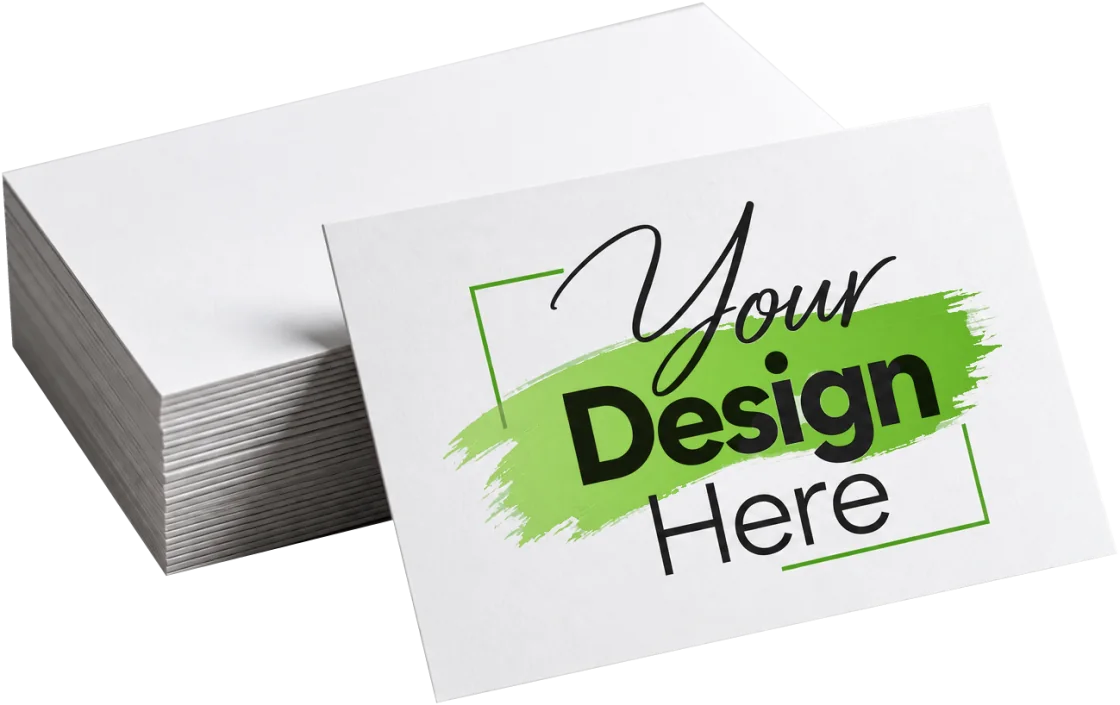
*Product images are for illustration purposes only. Actual products may vary.
Sharp, Vivid Flyers In Any Size And Quantity.
Starts From $29 + HST
*Product images are for illustration purposes only. Actual products may vary.
Vibrant Postcards For Mailers And Promotions.
Starts From $22 + HST

*Product images are for illustration purposes only. Actual products may vary.
Eye-Catching Hangers For Promotions And Services.
Starts From $125 + HST

*Product images are for illustration purposes only. Actual products may vary.
Premium Stock Or Laminated Menus And Multiple Page Booklets.
Starts From $24 + HST
*Product images are for illustration purposes only. Actual products may vary.
Gallery-Quality Posters In Large Formats.
Starts From $18 + HST

*Product images are for illustration purposes only. Actual products may vary.
Vivid, Lifelike Photo Prints On Premium Photo Paper.
Starts From $15 + HST

*Product images are for illustration purposes only. Actual products may vary.
Elegant Certificates On Premium Paper Stock.
Starts From $49 + HST
*Product images are for illustration purposes only. Actual products may vary.
Professional Letterheads For Your Business Stationery.
Starts From $255 + HST

*Product images are for illustration purposes only. Actual products may vary.
Branded Envelopes In A Range Of Sizes.
Starts From $220 + HST
*Product images are for illustration purposes only. Actual products may vary.
Slim, Durable Bookmarks In Paper Or Aluminium.
Starts From $24 + HST
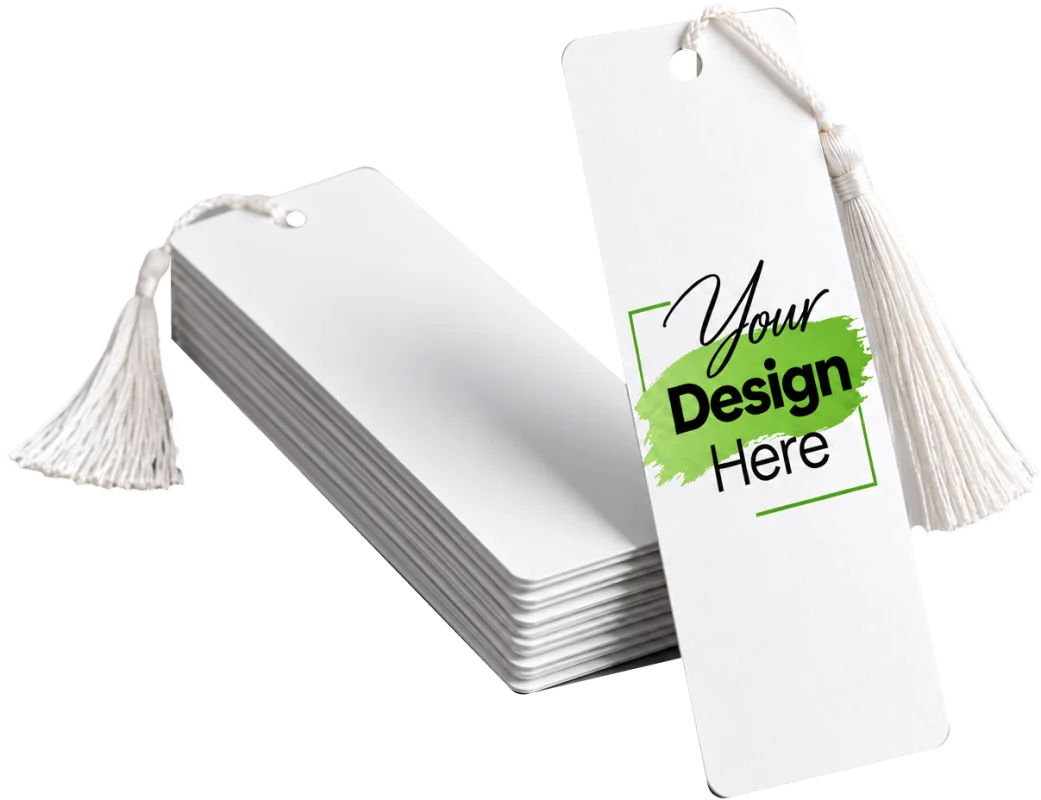
*Product images are for illustration purposes only. Actual products may vary.
Hang Tags For Retail, Fashion And Gifts.
Starts From $29 + HST
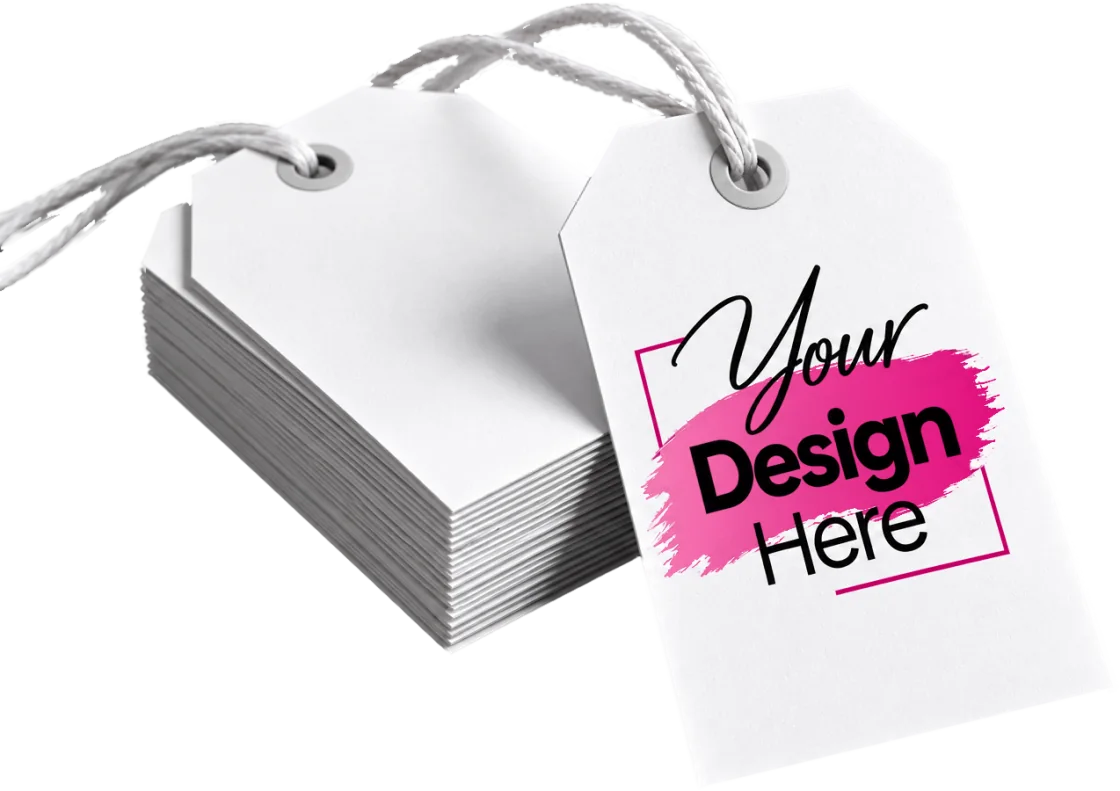
*Product images are for illustration purposes only. Actual products may vary.
Durable Printed Tags For Bags And Luggage.
Starts From $25 + HST

*Product images are for illustration purposes only. Actual products may vary.
Vibrant Stickers In Any Size, Matte Or Gloss.
Starts From $20 + HST
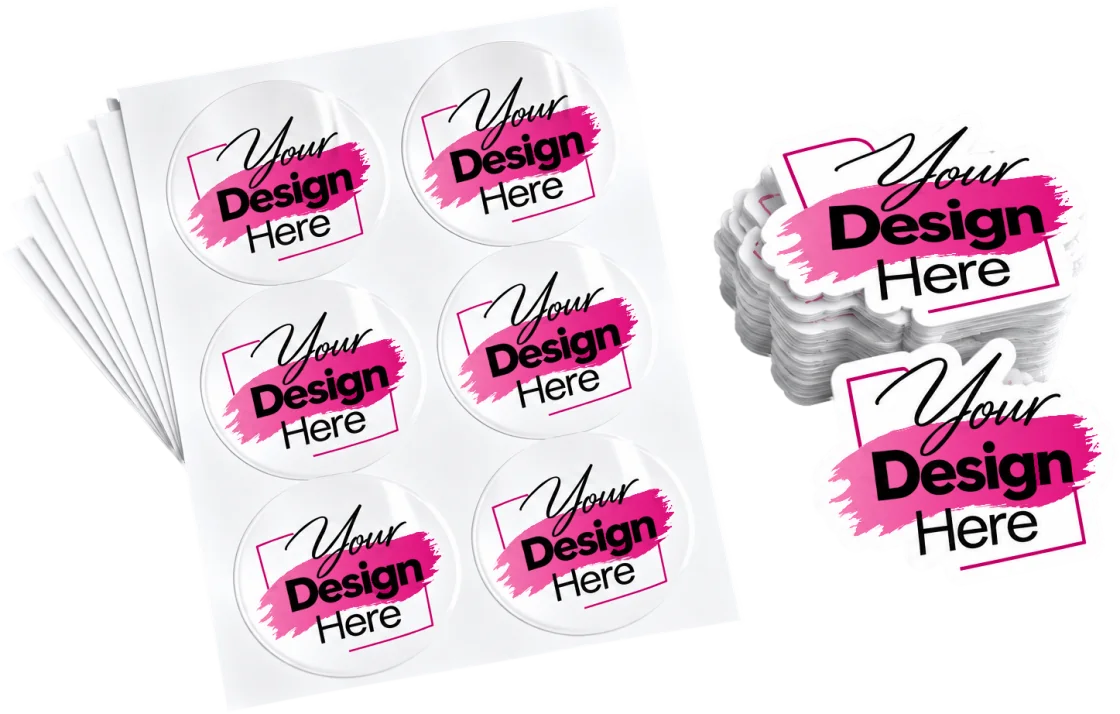
*Product images are for illustration purposes only. Actual products may vary.
Roll Or Sheet Labels For Products And Packaging.
Starts From $500 + HST
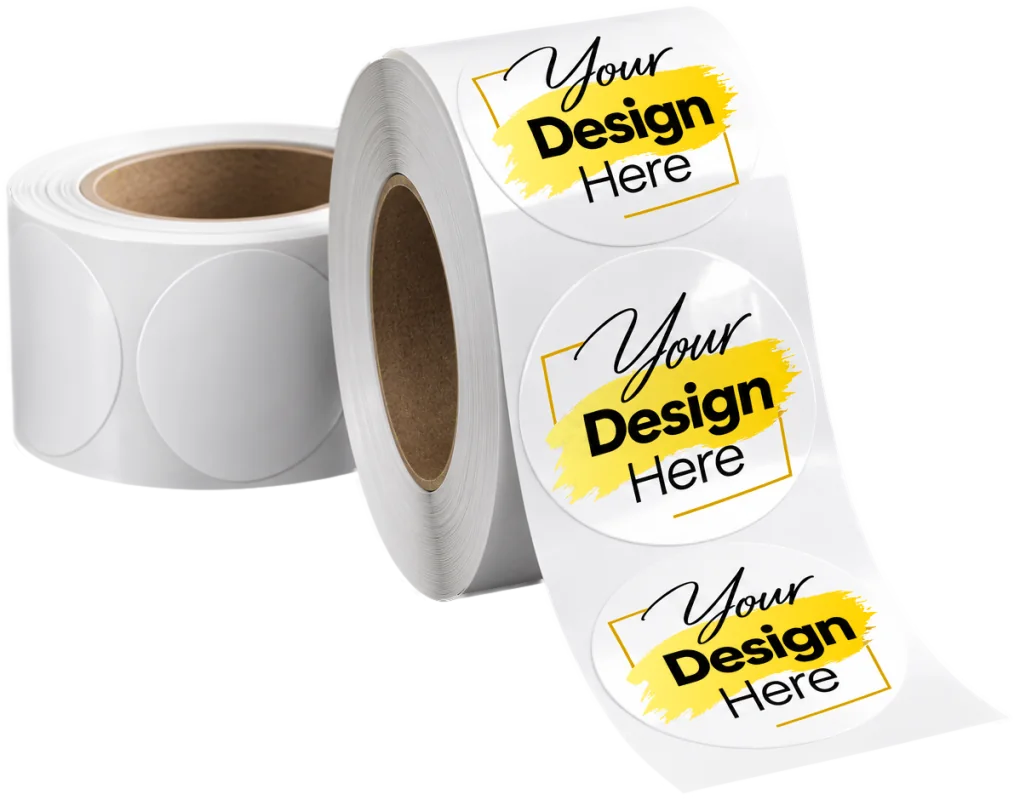
*Product images are for illustration purposes only. Actual products may vary.
Printed Pouches For Retail.
Starts From $500 + HST
*Product images are for illustration purposes only. Actual products may vary.
Full-Body Printed Sleeves For Bottles And Jars.
Starts From $500 + HST
*Product images are for illustration purposes only. Actual products may vary.
Printed Folding Cartons For Retail Packaging.
Starts From $500 + HST
*Product images are for illustration purposes only. Actual products may vary.
Soft, Durable Tees For Teams And Brands.
Starts From $22 + HST

*Product images are for illustration purposes only. Actual products may vary.
Printed Caps With Lasting Color.
Starts From $20 + HST
*Product images are for illustration purposes only. Actual products may vary.
Personalized Mugs For Gifts And Merch.
Starts From $40 + HST
*Product images are for illustration purposes only. Actual products may vary.
Full-Color Magnets For Promotions.
Starts From $120 + HST
*Product images are for illustration purposes only. Actual products may vary.
Printed Coasters For Cafes, Bars And Events.
Starts From $44 + HST
*Product images are for illustration purposes only. Actual products may vary.
Acrylic And Metal Printed Keychains.
Starts From $90 + HST

*Product images are for illustration purposes only. Actual products may vary.
Durable Vinyl Branding For Cars And Other Vehicles.
Starts From $20 + HST

*Product images are for illustration purposes only. Actual products may vary.
Full And Partial Wraps That Turn Heads.
Starts From $700 + HST

*Product images are for illustration purposes only. Actual products may vary.
Frosted, Perforated And Full-Color Decals.
Starts From $15 + HST
*Product images are for illustration purposes only. Actual products may vary.
Full-Color Wallpaper For Walls And Feature Spaces.
Starts From $350 + HST
*Product images are for illustration purposes only. Actual products may vary.
Durable Floor Decals For Stores And Events.
Starts From $15 + HST

*Product images are for illustration purposes only. Actual products may vary.
Lightweight, Weatherproof Corrugated Plastic Signs.
Starts From $25 + HST

*Product images are for illustration purposes only. Actual products may vary.
Poster Signs On A Sturdy Pedestal Stand.
Starts From $90 + HST
*Product images are for illustration purposes only. Actual products may vary.
Fold-Flat A-Frame Signs For Sidewalks And Shops.
Starts From $175 + HST

*Product images are for illustration purposes only. Actual products may vary.
Light, Portable X-Banner Stands For Events.
Starts From $115 + HST

*Product images are for illustration purposes only. Actual products may vary.
Compact Signs For Counters, Tables And Desks.
Starts From $80 + HST

*Product images are for illustration purposes only. Actual products may vary.
Professional Signs For Listings And Open Houses.
Starts From $15 + HST

*Product images are for illustration purposes only. Actual products may vary.
Weatherproof Signs With H-Stakes.
Starts From $18 + HST

*Product images are for illustration purposes only. Actual products may vary.
Retractable Banners For Events And Shops.
Starts From $45 + HST
*Product images are for illustration purposes only. Actual products may vary.
Heavy-Duty Hemmed, Grommeted Vinyl Banners.
Starts From $30 + HST

*Product images are for illustration purposes only. Actual products may vary.
Wind-Friendly Mesh Banners For Fences.
Starts From $25 + HST
*Product images are for illustration purposes only. Actual products may vary.
Prototypes, Parts And 3D Prints.
Starts From $5 + HST
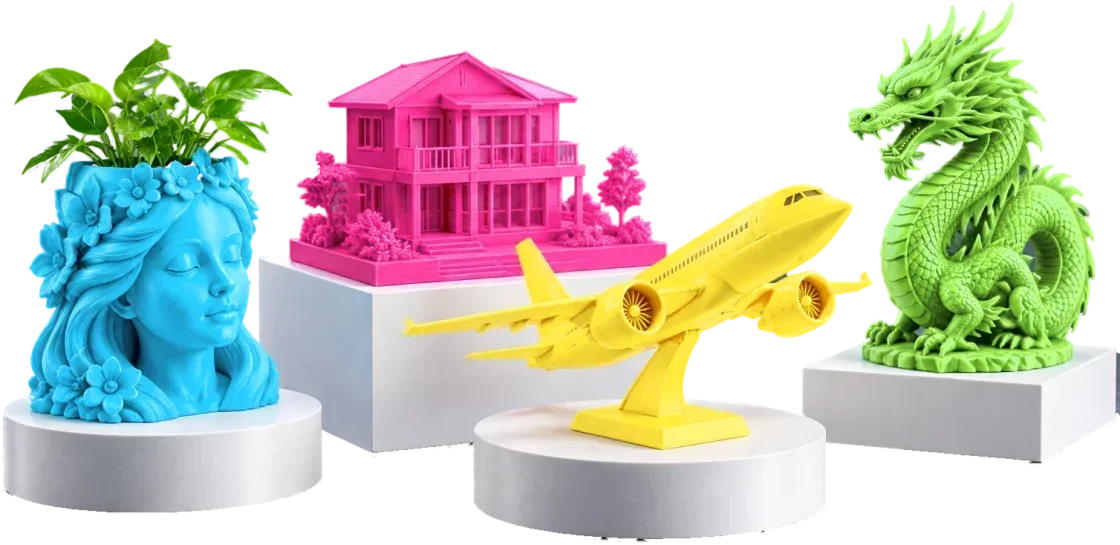
*Product images are for illustration purposes only. Actual products may vary.
Have Something Else In Mind? We Will Make It.
Something Went Wrong Sending Your Request. Please Call (519)-635-8579 Or Email packlyncanada@gmail.com.
Questions, Custom Jobs Or A Quick Chat. We'd Love To Hear From You.
Open All 7 Days
11 Am To 10 Pm
Packlyn Canada
Effective Date: November 3, 2026
At Packlyn Canada (“Packlyn,” “we,” “us,” or “our”), we respect your privacy and are committed to protecting the personal information entrusted to us.
This Privacy & Cookie Policy explains how we collect, use, disclose, store, and safeguard personal information when you visit our website, request a quotation, place an order, communicate with us, or use our products and services.
We aim to handle personal information responsibly, transparently, and in accordance with applicable Canadian privacy legislation, including the Personal Information Protection and Electronic Documents Act (PIPEDA), where applicable.
By using our website, you acknowledge the practices described in this policy. Where consent is legally required, we will request it separately or through an appropriate consent mechanism.
We collect information reasonably necessary to provide our products and services, respond to inquiries, process transactions, and operate our business.
Depending on how you interact with us, we may collect:
When you request a quotation or place an order, we may collect:
Payments may be processed through authorized third-party payment providers.
We do not intentionally collect or store complete payment card numbers or security codes on our website servers.
Customers may provide artwork, photographs, logos, graphics, documents, or other digital files for printing and customization.
These materials are collected solely for legitimate purposes associated with the requested services, including quotation preparation, artwork review, production, quality control, and order fulfillment.
Customers should avoid including unnecessary sensitive personal information in uploaded files.
When you access our website, certain technical information may be collected automatically, including:
This information helps us maintain website functionality, understand visitor activity, and improve our services.
We use personal information only for identified and legitimate business purposes, including:
We do not sell customer personal information to third parties.
We will obtain consent where required before using personal information for additional purposes.
Our website may use cookies and similar technologies to support essential website functions, analyze visitor activity, and measure marketing effectiveness.
Cookies are small data files stored on your device when you visit a website.
Depending on their purpose, cookies may be temporary or remain on your device for a defined period.
Essential cookies support basic website functions, security, and technical operation.
These may include cookies used for:
Certain essential cookies may be necessary for the website to operate properly.
We use Google Analytics to understand how visitors interact with our website.
Google Analytics may collect information about:
This information helps us understand how our website is used and identify opportunities for improvement.
Google Analytics may use cookies or other identifiers, depending on the configuration and consent settings.
We may use Google Ads and related advertising technologies to evaluate the performance of our advertising campaigns.
Where enabled, these technologies may help us:
Advertising technologies may use cookies or similar identifiers.
We will obtain any consent required by applicable law before activating non-essential advertising technologies.
Functional cookies may remember selected preferences or settings to provide a more convenient browsing experience.
These may include language preferences, saved settings, or other optional website features.
Your cookie choices
When you first visit, a cookie banner asks for your choice. Until you choose, no optional cookies or tracking run. You can press Accept All, Reject Optional or Customize to choose each category yourself. Your choice is kept in your browser for 6 months, then we ask again. We also ask again if we make an important change to how we use cookies.
The cookies and storage this website uses
We use Google Consent Mode, so Google services are told about your choice before anything else happens. Our Plyn chat assistant, the WhatsApp button and the quote forms work whatever you choose.
You can control or restrict cookies through your browser settings.
Most browsers allow users to:
Disabling essential cookies may affect certain website features.
Where our website provides a cookie consent mechanism, visitors may use it to manage optional cookies and withdraw consent.
You can also learn more about Google's use of information through:
https://policies.google.com/technologies/partner-sites
For Google Analytics opt-out options, visit:
https://tools.google.com/dlpage/gaoptout
You can change or withdraw your choice at any time with Cookie Settings at the bottom of every page. If you withdraw a choice, we stop the related tracking straight away and remove its cookies from your browser where we can. Clearing your browser's cookies and site data also removes your choice, and the banner will ask you again.
We may share limited personal information with trusted service providers when reasonably necessary to operate our business.
These may include:
Service providers receive information only as reasonably necessary for their assigned functions.
We expect service providers to maintain appropriate confidentiality and security safeguards.
We may also disclose information where required or permitted by law, including in response to lawful requests from government authorities.
We do not disclose customer artwork or personal information to unrelated third parties for their independent marketing purposes without appropriate authorization.
The outside services we use, and what each one receives:
Online payments may be processed through third-party payment platforms, including Square or other payment providers made available by Packlyn.
Payment providers may independently collect and process information necessary to authorize and complete transactions.
Their handling of payment information is governed by their respective privacy policies and security practices.
Packlyn does not intentionally store complete payment card details on its website servers.
Customers are encouraged to review the privacy policies of the payment services they use.
We use reasonable administrative, technical, and organizational safeguards designed to protect personal information against unauthorized access, loss, misuse, disclosure, or alteration.
These safeguards may include:
Although we take reasonable precautions, no internet transmission or electronic storage system can be guaranteed to be completely secure.
In the event of a privacy breach, we will assess and respond to the incident in accordance with applicable legal requirements, including notification obligations where required.
We retain personal information only for as long as reasonably necessary to fulfill the purposes for which it was collected, meet contractual obligations, resolve disputes, and comply with applicable legal or accounting requirements.
Retention periods may vary depending on the type of information.
For example:
When information is no longer required, we will take reasonable steps to securely delete, destroy, or anonymize it, subject to applicable legal requirements.
Plyn chat records: the messages of a Plyn conversation are kept for 30 days after your last message so Plyn can follow the conversation, then deleted. A short record of each question (with contact details removed), how it was answered and what it cost is kept for 120 days so we can check Plyn's quality and costs. If you ask Plyn to remember you, what you asked it to remember is kept until you tell Plyn to forget you, or for 365 days after your last visit.
We recognize that customers may submit confidential business designs, marketing materials, product labels, and other proprietary content.
Customer-submitted artwork is used for purposes reasonably connected to the requested services.
We do not claim ownership of customer-provided artwork merely because it has been submitted for printing.
Customer artwork will not be intentionally published, sold, or used in promotional materials without appropriate permission, except where otherwise permitted by law.
Artwork may be shared with authorized production partners where necessary to fulfill an order.
Customers should inform us before submitting files containing highly confidential or sensitive information so that appropriate handling arrangements can be discussed.
We may send service-related communications, including quotation responses, order confirmations, production updates, invoices, and delivery notifications.
Where permitted by applicable law, we may also send promotional communications about our products, services, or special offers.
Commercial electronic messages will be handled in accordance with Canada's Anti-Spam Legislation (CASL), where applicable.
Customers may withdraw consent to promotional emails or messages using the unsubscribe instructions provided or by contacting us.
Unsubscribing from marketing communications will not prevent necessary transactional or service-related messages.
Automatic emails from our website, such as the confirmation sent after a quote request, include an unsubscribe link. You can also unsubscribe by contacting us.
Subject to applicable law, individuals may request:
Certain requests may be subject to legal exceptions, identity verification, or record-retention requirements.
We will respond to privacy requests within the timeframes required by applicable law.
How to ask us to delete your information: email packlyncanada@gmail.com with the subject “Data Deletion Request”, or call or text +1 (519)-635-8579. Tell us the name, email address or phone number you used with us.
We may need to confirm your identity before we delete anything. Some records, such as invoices, must be kept for tax and accounting reasons; we keep only what the law requires and delete or anonymize the rest. We reply within 30 days.
Our website and services are meant for adults and businesses. They are not directed to children, and we do not knowingly collect personal information from children under 13.
If you are under the age of majority in your province or territory, please ask a parent or guardian to contact us or send a request for you.
If we ever need a child's information to make an order (for example, a child's name to print on a custom product ordered by a parent), we collect it only from, and with the consent of, the parent or guardian.
If you are a parent or guardian and believe your child has given us personal information, please contact us and we will delete it.
Our website may contain links to third-party websites, payment platforms, social media services, or other external resources.
These websites operate independently and may have their own privacy policies and data collection practices.
Packlyn is not responsible for the privacy practices of third-party websites that we do not control.
We encourage visitors to review the privacy policies of external services before providing personal information.
Some of our technology providers, hosting services, payment processors, or analytics platforms may process or store information outside Canada.
Where information is processed internationally, it may be subject to the laws of the country in which it is stored or accessed.
We will take reasonable steps to protect personal information and meet applicable Canadian privacy obligations when using third-party service providers.
Packlyn Design (the design software you can download from this website or use online at accounts.packlyn.ca/app) uses a Packlyn account. How that software and your account handle personal information is explained in its own Packlyn Design Privacy Policy, together with its Cookie Policy and Data Retention Policy. In short:
The cookie choices on this website don’t apply inside the software; the online version uses only a strictly necessary sign-in cookie.
We may update this Privacy & Cookie Policy to reflect changes in our business operations, technology, services, or legal requirements.
Any updated version will be published on our website with a revised effective date.
Where required by law, we will provide additional notice or obtain renewed consent before implementing material changes to how personal information is used.
We encourage visitors to review this policy periodically.
If you have questions, concerns, or requests relating to your personal information, please contact Packlyn Canada.
We will review privacy concerns and make reasonable efforts to address them in accordance with applicable law.
Individuals may also contact the Office of the Privacy Commissioner of Canada regarding privacy rights or unresolved concerns.
Website: https://www.priv.gc.ca
For privacy questions, requests to see, correct or delete your information, or complaints, please contact us using the details above.
© 2026 Packlyn Canada. All Rights Reserved.
Packlyn Canada
Effective Date: November 3, 2026
Welcome to Packlyn Canada (“Packlyn,” “we,” “our,” or “us”).
These Terms & Conditions govern the purchase and use of products and services provided by Packlyn Canada, including orders placed through our website, email, telephone, social media, or in person.
By placing an order or approving a quotation, customers acknowledge and agree to the applicable terms outlined below.
Packlyn reserves the right to update these Terms & Conditions at any time. Changes will apply to orders placed after the updated terms become effective, unless otherwise agreed.
Orders must be placed by an adult who has reached the age of majority in their province or territory, or with the consent of a parent or guardian.
Packlyn provides commercial and personalized printing, graphic design, signage, packaging, promotional merchandise, 3D printing, and related customization services.
All products and services are subject to material availability, technical specifications, production capabilities, and order acceptance.
We reserve the right to refuse orders involving unlawful, infringing, discriminatory, threatening, or otherwise prohibited content.
Custom products are manufactured according to the specifications approved by the customer.
All quotations are based on the information provided at the time of inquiry, including product type, size, quantity, material, finishing, design requirements, and delivery method.
A quotation does not guarantee product availability or reserve a production slot until the order has been accepted.
A 50% deposit is generally required to confirm an order and begin artwork preparation or production.
The remaining balance must be paid before the completed order is released, shipped, delivered, or installed, unless otherwise agreed in writing.
For certain orders, including rush orders, specialized materials, and third-party products, full payment may be required in advance.
Accepted payment methods will be communicated during checkout or invoicing.
Orders are not considered confirmed until the required payment and necessary order information have been received.
Packlyn reserves the right to suspend work on orders with outstanding payments.
Customers are responsible for ensuring that submitted artwork, text, logos, images, dimensions, and other content are accurate and suitable for production.
Customer-supplied files should meet the technical requirements provided by Packlyn.
Customers are responsible for:
Packlyn is not responsible for errors originating from customer-supplied files or information that remain present in the final approved artwork.
If submitted artwork requires corrections, resizing, conversion, or reconstruction, additional design or preparation charges may apply with customer approval.
Where applicable, digital proofs may be provided for customer review before production.
Customers must carefully verify all details, including layout, spelling, dimensions, colors, placement, and orientation.
Once final artwork approval has been received, the customer accepts responsibility for the approved content and specifications.
Changes requested after approval may result in additional charges, production delays, or the need to place a replacement order.
Packlyn will make reasonable efforts to accommodate changes before production begins but cannot guarantee modifications once production is underway.
Printed colors may differ slightly from colors displayed on digital screens due to differences in display settings, printing processes, materials, inks, and finishes.
RGB and CMYK color systems may produce different visual results.
While Packlyn strives to maintain consistent print quality, exact color matching is not guaranteed unless a specific color-matching service has been expressly agreed upon.
Minor variations in color, texture, alignment, or finishing that fall within reasonable commercial printing tolerances do not automatically constitute a manufacturing defect.
Standard production typically takes 2–4 business days after final artwork approval and receipt of the required payment, depending on the product and order specifications.
Production timelines are estimates unless a specific completion deadline has been confirmed in writing.
Additional time may be required for:
Rush production may be available at an additional charge, subject to capacity and written confirmation.
Packlyn is not responsible for delays caused by incomplete information, delayed approvals, payment issues, carrier disruptions, or circumstances beyond our reasonable control.
Customers should contact Packlyn immediately if they wish to modify or cancel an order.
Cancellation eligibility depends on the production stage.
Any refundable amount will be determined based on the actual work completed and costs incurred, subject to applicable consumer protection laws.
Due to the personalized nature of custom printing, products manufactured according to approved customer specifications are generally not eligible for returns or refunds based solely on a change of mind.
However, Packlyn stands behind the quality of its workmanship.
If an order contains a verified manufacturing defect, printing error attributable to Packlyn, or material discrepancy from the approved specifications, customers should contact us within 48 hours of receiving the order, providing photographs and relevant order details.
We will review the concern and, where appropriate, offer a correction, reprint, replacement, or refund.
This reporting period does not limit any rights or remedies available under applicable law.
Refunds or reprints are generally not provided for customer-approved errors, unsuitable customer-supplied artwork, or reasonable printing variations disclosed in these terms.
Approved refunds are normally returned using the original payment method. If an order is cancelled, the refundable part of any deposit is worked out as described in Order Changes & Cancellations above.
Graphic design services may be quoted separately from printing and production.
Design fees cover the agreed scope of work and any revisions expressly included in the quotation.
Additional revisions, redesigns, or changes outside the agreed scope may incur additional charges.
Unless otherwise agreed in writing, payment for graphic design services does not automatically include ownership or delivery of editable source files, working files, or design templates.
Any transfer of intellectual property rights must be expressly agreed upon in writing.
Packlyn retains ownership of its original design work except to the extent that rights are transferred under a separate written agreement.
Customers confirm that they own or have obtained the necessary licenses, permissions, and authorizations to reproduce any submitted artwork, logos, photographs, trademarks, or other protected materials.
Packlyn is not responsible for independently verifying ownership of every customer-submitted design.
Customers must not submit materials that infringe the intellectual property rights of others.
Packlyn reserves the right to reject or discontinue work involving suspected copyright or trademark infringement.
Any customer responsibility for third-party claims will be determined according to applicable law and the circumstances of the order.
Packlyn offers shipping across Canada, subject to product eligibility, carrier availability, and applicable shipping charges.
Shipping costs and estimated delivery timelines will be communicated before order confirmation where applicable.
Delivery estimates are not guaranteed unless expressly confirmed.
Customers are responsible for providing complete and accurate shipping information.
Additional charges arising from incorrect addresses, unsuccessful delivery attempts, or requested redelivery may apply.
Customers should inspect delivered packages promptly and report visible damage, missing items, or discrepancies as soon as reasonably possible.
Nothing in this section limits Packlyn's obligations or customer remedies under applicable law.
Local pickup is available in Cambridge, Ontario, by appointment or as otherwise arranged.
Customers will be notified when their orders are ready for collection.
Customers should confirm pickup arrangements before visiting.
Orders must be paid in full before release unless alternative payment arrangements have been approved.
Uncollected orders may be subject to reasonable storage arrangements or charges where disclosed and agreed upon in advance.
Installation services, where offered, are subject to separate quotations and scheduling.
Customers must ensure that the installation location is accessible, safe, clean, and suitable for the requested application.
For adhesive graphics, decals, window films, and similar products, installation results may depend on surface condition, temperature, existing coatings, and environmental factors.
Packlyn is not responsible for problems caused by undisclosed pre-existing surface damage, incompatible coatings, or improper maintenance, except where Packlyn is legally responsible.
Any additional preparation, removal, or corrective work must be agreed upon before additional charges are applied.
Certain products may exhibit minor differences in appearance, texture, dimensions, or finish due to the manufacturing process.
For custom apparel, promotional merchandise, signage, packaging, and 3D-printed products, reasonable production tolerances may apply.
Packlyn will make reasonable efforts to ensure that completed products conform to approved specifications and applicable quality standards.
Substantial deviations, defects, or failures to meet agreed specifications will be addressed in accordance with applicable law and our quality resolution procedures.
Rush orders are accepted only when production capacity permits.
Additional fees may apply and will be disclosed before confirmation.
A rush order is not guaranteed until Packlyn confirms the required deadline.
Customer delays in providing artwork, approvals, or payment may affect the agreed completion schedule.
We aim to keep product descriptions, specifications, pricing, and other website information accurate and up to date.
However, occasional typographical errors, technical inaccuracies, or availability changes may occur.
If a material error affects an order, Packlyn will contact the customer to explain the issue and provide appropriate options, including cancellation and reimbursement where required.
We reserve the right to modify or discontinue products and services, subject to existing contractual commitments and applicable law.
To the extent permitted by applicable law, Packlyn is not responsible for indirect or consequential business losses resulting from delays, customer-provided errors, or circumstances beyond our reasonable control.
Nothing in these Terms & Conditions excludes or limits liability that cannot legally be excluded, including applicable statutory consumer rights.
Any contractual limitations will be interpreted in accordance with Ontario and Canadian law.
Personal and business information collected during quotations, ordering, payment, and customer communication is handled in accordance with our Privacy & Cookie Policy and applicable privacy legislation.
Customer information is used for legitimate business purposes, including order processing, communication, fulfillment, and customer support.
Payment information may be processed through authorized third-party payment service providers.
Packlyn will not be considered in breach of an obligation to the extent that performance is prevented or delayed by events beyond our reasonable control, including natural disasters, major equipment failures, supply-chain interruptions, transportation disruptions, power outages, or government restrictions.
We will make reasonable efforts to notify affected customers, minimize disruption, and provide suitable solutions.
Customer rights under applicable law remain unaffected.
Packlyn Design is licensed, not sold. Downloading, installing or using it, online or on Windows, is governed by its own Terms of Service, End User Licence Agreement, Subscription and Billing Terms, Refund Policy and Acceptable Use Policy, which you accept when you create your account. These Terms & Conditions continue to apply to printing orders, including orders placed from the software with “Print With Packlyn”.
Pro costs CA$12.99 for 30 days or CA$119.99 for 365 days, plus applicable taxes, starts the moment payment is completed and, with Auto-Pay on (the customer’s choice on the payment page, changeable any time in My Account), renews until Auto-Pay is turned off or the subscription is cancelled. Refunds for the software are never automatic: Packlyn reviews each request and decides. The Windows installer is not code-signed by Microsoft; “Licensed Software” means use is licensed by Packlyn Canada under the End User Licence Agreement, not a Microsoft or government certification.
These Terms & Conditions are governed by the laws of the Province of Ontario and the applicable federal laws of Canada.
Any disputes will be handled in accordance with applicable laws and the jurisdiction of the appropriate courts or tribunals.
Nothing in these terms restricts rights or remedies that customers are entitled to under mandatory consumer protection legislation.
Customers may also contact us through the contact page.
© 2026 Packlyn Canada. All Rights Reserved.
Packlyn Canada
Effective Date: October 24, 2026
This website is owned and operated by Packlyn Canada, a business operating in Cambridge, Ontario, Canada.
Packlyn Canada provides printing, customization, graphic design, signage, promotional products, and related services.
All content published on this website, including text, graphics, layouts, designs, photographs, illustrations, branding, and other original materials, is owned by or licensed to Packlyn Canada, unless otherwise indicated.
All rights are reserved.
Unauthorized reproduction, modification, distribution, or commercial use of protected website content is prohibited without prior written authorization, except as permitted by applicable law.
The Packlyn name, branding, logos, and original creative materials are the intellectual property of Packlyn Canada or their respective rights holders.
Third-party trademarks, product names, and logos appearing on this website remain the property of their respective owners.
References to third-party brands do not imply sponsorship, endorsement, partnership, or affiliation unless expressly stated.
Credits and licences:
If you believe something on this website uses your work without permission, please contact us and we will review it promptly.
Packlyn Canada makes reasonable efforts to ensure that the information published on this website is accurate, current, and complete.
However, product descriptions, specifications, pricing, availability, and other information may change.
Website content is provided for general informational purposes and does not constitute a binding offer unless expressly confirmed.
Final product specifications, pricing, and service conditions are determined through accepted quotations, order confirmations, or applicable agreements.
To the extent permitted by applicable law, Packlyn Canada is not responsible for losses arising from temporary website unavailability, technical interruptions, or reliance on information that contains unintentional errors.
We do not guarantee that the website will operate without interruption or that all technical issues can be prevented.
Nothing in this notice excludes or restricts liability or legal rights that cannot lawfully be excluded or restricted.
This website may contain links to third-party websites, platforms, or services for informational or operational purposes.
Packlyn Canada does not control external websites and is not responsible for their content, availability, security, or privacy practices.
The inclusion of an external link does not necessarily constitute an endorsement or affiliation.
We respect the privacy of our website visitors and customers.
Personal information collected through this website is handled in accordance with our Privacy & Cookie Policy and applicable Canadian privacy legislation.
For more information, please refer to our Privacy & Cookie Policy.
Visitors agree to use this website for lawful purposes.
Unauthorized attempts to interfere with website functionality, compromise security, access restricted systems, or misuse website content are prohibited.
We reserve the right to take appropriate measures against unlawful or unauthorized activity.
This Legal Notice is governed by the laws of the Province of Ontario and the applicable federal laws of Canada.
Any disputes relating to this notice will be addressed in accordance with applicable laws and jurisdictional requirements.
Packlyn Canada reserves the right to update or modify this Legal Notice as necessary.
Any changes will be published on this website with an updated effective date.
Visitors are encouraged to review this page periodically.
For questions or concerns regarding this Legal Notice, please contact us using the details above.
© 2026 Packlyn Canada. All Rights Reserved.
Your Complete Guide to Print-Ready Artwork
Great printing starts with properly prepared artwork. Whatever you're printing, this guide will help you prepare your files for professional printing.
Use correct unitsInches (in), millimetres (mm) or centimetres (cm).
Create at actual sizePrepare artwork at the final print size (1:1 scale).
Scaled artwork for large productsScaled files may be accepted for large-format products when clearly indicated.
Provide exact dimensionsFor custom-shaped or 3D products, provide the required width, height, and shape.
Always create your artwork at the exact dimensions of your final printed product.
Tip: Confirm your final dimensions before submitting artwork to avoid unnecessary resizing.
Artwork with bleed3.75x2.25 inch (95x57 mm)
Final trim size3.5x2 inch (89x51 mm)
Safe area3.25x1.75 inch (83x44 mm)
Bleed Area0.125″ (3.175 mm) extra artwork on each side.
Trim LineFinal cut size of your product.
Safe AreaKeep important text, logos and graphics at least 0.125″ (3.175 mm) inside the trim line.
Bleed is the extra artwork extending beyond the final cutting line. It prevents unwanted white edges after trimming.
Example: A 3.5x2 inch finished size with standard bleed should have an artwork size of 3.75x2.25 inch.
Bleed Size8.75x11.25 inch(222x286 mm)
Trim Size8.5x11 inch(216x279 mm)
Safe Area8.25x10.75 inch(210x273 mm)
Bleed Size33.25x78.25 inch(845x1988 mm)
Trim Size33x78 inch(838x1981 mm)
Safe Area32.75x77.75 inch(832x1975 mm)
Bleed Size4.25x4.25 inch(108x108 mm)
Trim Size4x4 inch(102x102 mm)
Safe Area3.75x3.75 inch(95x95 mm)
Bleed LineExtend background and images to this line.
Trim LineFinished size after cutting.
Safe AreaKeep main content inside this line.
Keep essential design elements away from the cutting edges.
Tip: A generous safe margin gives your finished product a cleaner, more professional appearance.
Preferred for print-ready artwork.
Editable vector designs.
Vector logos and illustrations.
Vector graphics (scalable).
High-quality raster images for sharp prints.
Images with transparent backgrounds.
High-resolution photographic artwork.
Recommended
Avoid
Choosing the right file format helps preserve your artwork's quality and accuracy.
| File format | Recommended use |
|---|---|
| Preferred for most print-ready artwork | |
| AI | Editable vector designs |
| EPS | Vector logos and illustrations |
| SVG | Vector graphics, subject to compatibility |
| TIFF | High-quality raster images |
| PNG | Images with transparent backgrounds |
| JPG/JPEG | High-resolution photographic artwork |
Important: PDF/X-4 is a strong choice for many professional printing workflows. Editable source files may be requested for custom cutting or specialized production.
300 PPISmall, detailed prints viewed up close
150–300 PPIMedium and large prints with fine details
72–150 PPILarge Format Graphics viewed from a distance
Use high-quality original imagesAvoid screenshots and compressed files.
Check at 100% sizeView your image at actual print size to check sharpness.
Use vector graphicsfor logos, text and illustrations for the best results.
Consider viewing distanceLarger prints viewed from farther away can use lower resolution.
Image resolution directly affects the sharpness and clarity of your printed materials.
Tip: Increasing an image's resolution setting does not restore detail missing from a low-quality original.
Standard color mode used for most printing products.
Used for digital screens (websites, social media, monitors).
Used when a specific, consistent color match is required.
Used for unique finishes and special materials.
Screen vs PrintColors on your screen (RGB) may look brighter and more vibrant than the final printed result (CMYK) due to differences in displays, inks and materials.
Design in the Right Color ModeUse CMYK for printing and RGB for digital. Convert colors if needed.
Expect Slight Color VariationsPrinted colors may vary slightly due to materials, inks and finishes.
Use Color ReferencesFor critical color matching, provide Pantone (PMS) values or request a print proof.
Special EffectsMetallic, fluorescent and white ink require specific setups and may not match standard CMYK colors.
Different colour systems serve different purposes.
Important: Screen colours may differ from printed colours. Colour-critical projects should use an approved physical proof or sample.
Use Properly Prepared Fonts
Embed fonts or convert text to outlines to avoid missing or substituted fonts.
Keep Important Text Safe
Maintain safe margins so text and graphics are not cut off.
Avoid Common Issues
Do not use very thin fonts, tiny text or low-quality graphics.
Use Readable FontsChoose clear, standard fonts and keep an appropriate size.
Outline or Embed FontsConvert text to outlines or embed fonts to prevent font changes.
Use High-Quality GraphicsInclude vector graphics for logos and illustrations. Use high-resolution images for best results.
Keep Text Inside the Safe AreaEnsure important text and graphics are within the safe area and away from the edges.
Correct typography preparation helps prevent missing fonts, unexpected substitutions, and unreadable text.
Tip: Always proofread spelling, phone numbers, website addresses, and other details before submitting.
Cutting & Bleed
Add bleed around the design to avoid white edges after cutting.
Folding Guidelines
Provide clear fold lines and correct panel arrangement.
Finishing Options
Let us know your preferred finishing to get the desired look and feel.
Common Issues to Avoid
Add BleedUsually 3 mm or 0.125 in on all sides.
Mark Fold LinesIndicate fold positions for multi-panel products.
Specify FinishingMention gloss, matte, lamination, or special finishes if required.
Keep Important Elements SafeMaintain safe margins away from cut and fold lines.
Specialty products require additional production instructions.
Important: Keep technical production guides separate from the printed artwork and clearly label all layers.
Common Orientations
Choose the correct orientation based on your design and product.
Proper Layout & Margins
Keep important text and graphics within the safe area and maintain proper margins.
Print Placement Examples
Position your design correctly based on the product to get the best results.
Common Issues to Avoid
Incorrect layout or placement can result in cut-off text, upside-down printing or misaligned designs.
Match Product SizeSet your document to the exact size with proper bleed and safe area for the product.
Keep Key Elements InsideLogos, text and important graphics should be within the safe area.
Check OrientationConfirm the correct orientation before submitting your file.
Review Final LayoutDouble-check placement, margins and panel arrangement to avoid printing issues.
Before submitting your design, confirm that the artwork matches the product you've ordered.
Tip: Different products have different production requirements. Always confirm specialty specifications before finalizing artwork.
Paper & CardstockCoated, uncoated and textured paper stocks.
Vinyl & AdhesiveSelf-adhesive films for smooth, clean surfaces.
Fabric & TextileCotton, polyester and blended fabrics.
Rigid & Specialty SurfacesCanvas, coroplast, acrylic, metal, wood and other hard surfaces.
Suitable Artwork for Each Material
Use high-resolution files and design according to the material's properties.
Common Issues to Avoid
Artwork not suitable for the material can lead to poor results.
Choose the Right MaterialDesign your artwork keeping the material's texture and finish in mind.
Use Compatible File TypesPrefer vector files for logos and graphics, and high-resolution images for photos.
Check Color ModeCMYK for most materials. Some specialty materials may have color variations.
Keep Important Elements SafeEnsure text, logos and key graphics are within the safe area and away from edges or cut lines.
Ensure your artwork is suitable for the material and surface you are printing on.
Ask Plyn Anything About Printing & Packlyn Canada
I can assist you in English, Français, Español, हिन्दी and ਪੰਜਾਬੀ. Simply write in your preferred language and I will respond in the same language. To hear any reply, tap my face beside it.
Plyn is an AI assistant and may make mistakes. Please confirm important details with Packlyn Canada, and do not share sensitive information here. General printing questions may be saved anonymously to help Plyn learn.